 on 24 September 2026
 Customer invoicing software: manage invoices in DoliPlus
Your customer invoicing software should make every step of billing simple — and DoliPlus handles the whole invoice lifecycle for you:
- create an invoice in a few clicks, straight from the customer card;
- follow clear statuses, from draft to payment, with late-payment alerts;
- handle every variant: deposit invoices, credit notes, pro forma, discounts;
- send polished PDF documents by email, without leaving the software.
As a result, your sales cycle always ends properly — and your cash comes in faster. DoliPlus is the enhanced cloud edition of Dolibarr, the open-source ERP & CRM used across Europe.
Creating a customer invoice
The creation of a customer invoice starts from the customer card. A button, in the action bar at the bottom, launches the operation. The invoice is then created as a draft, with a temporary number of the PROV type.
Next, you select products from your catalogue, or you enter free lines. To add a new product to the catalogue, first go through the Products/Services interface.
Deducting a granted discount from a customer invoice
Have you promised a customer a commercial gesture? DoliPlus keeps it in reserve on their record. Then you deduct it from the customer invoice of your choice, whenever you want.
As a result, the amount stays traceable, together with its reason. Above all, the same discount can never be deducted twice.
1. Record the discount on the customer record
Open the customer record, Customer tab, then the Fixed discount – Discount status sub-tab.
In the “New deduction line” box, enter the Amount excl. tax, the VAT rate and the Note/Reason, which is mandatory. Finally, click Create deduction line.

From an invoice, the Detail link of the “Discounts” line takes you straight to this page.
2. Apply it to a draft customer invoice
Next, open the invoice: it must be in Draft status. In the header, the Discounts line shows the amount available for this customer.
Pick the discount from the list, then click Apply.
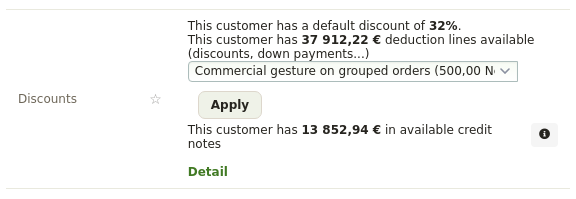
3. The result: a negative line on the invoice
The discount instantly becomes a line of the invoice. Its reason is used as the label, with a quantity of 1 and a negative price.
For example, a €500 discount excl. tax at 20% VAT gives a line of −€500 excl. tax, i.e. −€600 incl. VAT. The invoice total therefore drops by the same amount.

The discount is then consumed: it leaves the customer’s list of available discounts. However, if you delete this line from the invoice, the discount becomes available again.
The same “Discounts” block also appears on quotes and orders. Once the invoice is validated, fixed discounts are no longer offered. An available credit note or down payment can still be deducted from the remaining amount, though: see the credit invoice and the advance invoice.
Editing or deleting an invoice
A customer invoice is never simply deleted. Indeed, it must be covered by a credit note, or classified as “cancelled”. Therefore, your chronological numbering stays intact. Read more about credit notes
Likewise, editing is controlled: an invoice that carries a payment, or that has been transferred to accounting, can no longer be modified. In addition, the Contact tab lets you address the invoice to a separate billing contact.
The invoice life cycle in your customer invoicing software
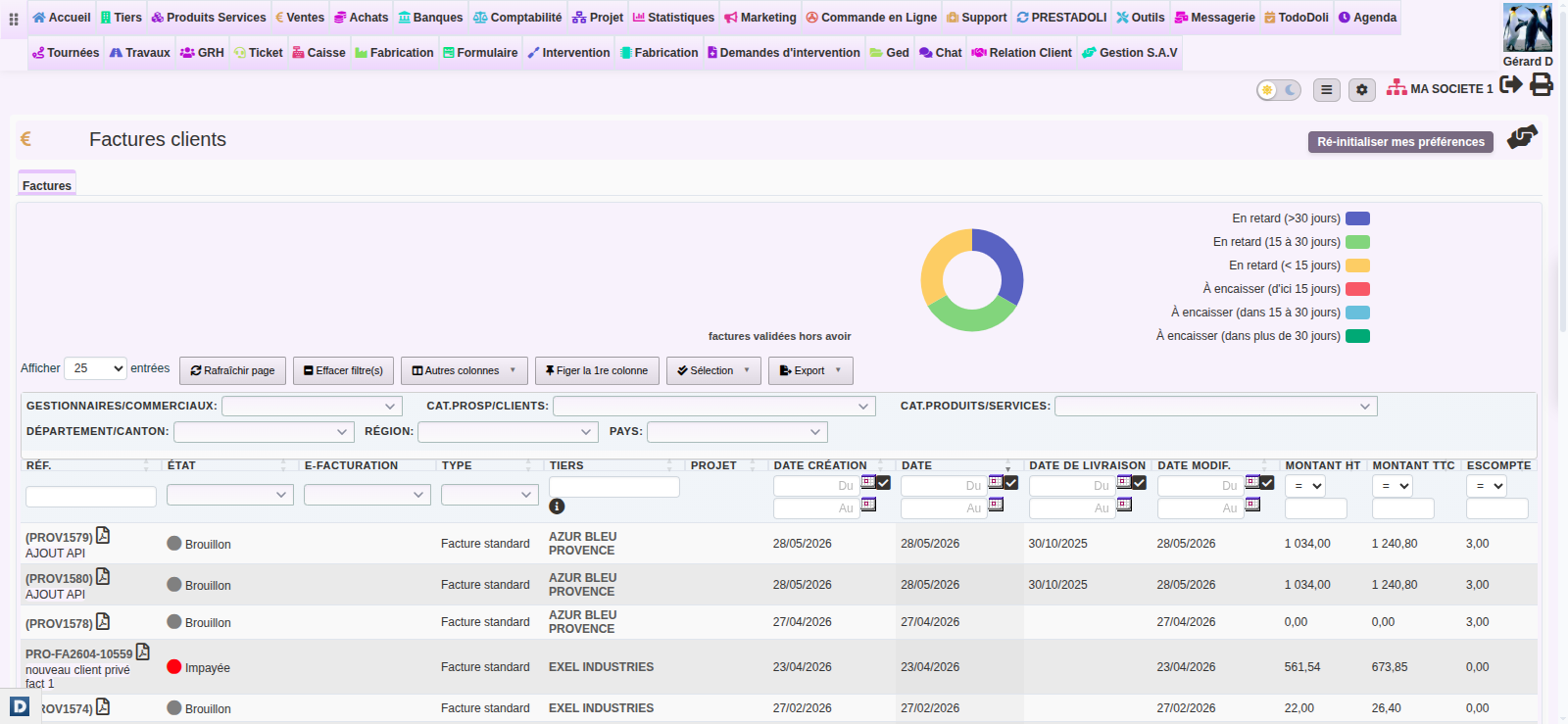
Each customer invoice follows a clear path: Draft → Validated (unpaid) → Partially paid → Paid or Cancelled. Moreover, a flag alert highlights late payments in the list views. You adjust this tolerance in Home → Setup → Alerts.
The labels you actually read on screen are Unpaid, Payment started and Paid. The second one often puzzles: an invoice stays in “Payment started” as long as the payments recorded against it do not add up to exactly its gross total. One cent off, a deposit turned into a discount, or a payment entered on another invoice is enough to leave it there while the customer has in fact paid everything.
Two moves, depending on the case: if a payment is missing, record it; if nothing is missing and only a negligible remainder is left, close the invoice as paid with the dedicated button (see “Closing an invoice as paid despite a small remainder” below). Do not raise a credit note to clear one cent: a credit note is meant to correct an invoicing mistake, not to absorb a rounding difference.
DoliPlus also covers special cases, such as the VAT reverse charge for intra-community trade. You then add the “Reverse charge” mention through a saved comment.
Closing an invoice as paid despite a small remainder
Sometimes, a payment leaves a tiny amount outstanding: a one-cent rounding gap, or a small transfer difference. In that case, DoliPlus still lets you classify the invoice as “Paid” with a single click. Therefore, a negligible balance never blocks you.
In practice, the “Classify Paid” button stays available as long as the outstanding amount does not exceed a tolerance threshold. By default, this threshold is 0.01. The residual balance is then considered settled, and the invoice switches directly to the Paid status.
Furthermore, you can adjust this threshold to your own habits. Go to Home → Setup → Modules → Invoices, then fill in the “Paid classification tolerance”. However, if you enter 0, DoliPlus requires payment to the exact cent.
Invoice variants and options
The customer invoice comes in several forms, detailed in dedicated chapters:
- the deposit invoice and the single-line deposit;
- the pro forma invoice;
- the early payment discount;
- the offset between receivables and payables.
In addition, you can merge several draft invoices into one, or define authorised billing periods to close your monthly revenue properly.
Formatting and sending the invoice
Finally, you polish your PDF documents. The PDF/Interface settings enable borders, colours and footer logos. You can also issue a bill of exchange, based on the customer’s bank details and the “bill of exchange” payment mode.
Once ready, the invoice goes out by email, with direct access to your document library and your contacts. Read more about sending emails from DoliPlus
Where your customers send their cheques
On the PDF, the line “Payment by check payable to … sent to” is followed by an address. If you have moved and the old address still prints, it is almost always because it does not come from where you think.
The setting lives in Home → Setup → Invoices, on the line “Offer payment by check payable to and mailed to”. Three choices, and the printed address changes with each:
- Do not suggest: no mention appears on the PDF;
- Company/Institution: the address of your company record is printed (Home → Setup → Company);
- Owner of account …: the address of the chosen bank account’s owner is printed, not the one on your company record.
That third case is the trap: you update your new address on the company record, and the PDF keeps showing the old one, because it is held on the bank account record. Open Banks → the account concerned and correct the Account owner address field. Then regenerate the PDF: a document already produced keeps the old address until it is built again.
Why does customer invoicing software matter?
Disorganised billing delays payments and weakens your cash flow. That is exactly what customer invoicing software brings: every invoice managed from draft to settlement, and revenue secured.
You win on three fronts:
- a controlled cycle: every invoice follows a clear status;
- tracked payments: late payers stand out at a glance;
- professional documents: clean PDFs, bills of exchange and email sending.
Going further
Related Entrées
