 on 20 August 2026
 Supplier invoice automation: drop the PDF, the invoice fills itself
Supplier invoice automation in DoliPlus
Supplier invoice automation in DoliPlus handles every invoice you receive by e-mail or by post, and turns it into a booked entry with almost no typing:
- scanned or e-mailed invoices land automatically in a dedicated folder,
- an assisted sorting screen files each document against the right supplier invoice,
- artificial intelligence reads the PDF for you: supplier, reference, date and VAT by rate,
- every invoiced item is matched against your catalogue, using your supplier’s own reference,
- small print is magnified on screen, so scanned invoices stay readable,
- an optional approval request secures the payment,
- purchases from foreign suppliers are even reported to the tax authorities, without double entry.
As a result, your team stops retyping invoices and your accounting stays reliable, day after day. DoliPlus is the enhanced cloud edition of Dolibarr, and this capability is part of the standard toolset.
How it works
First, paper invoices are scanned and sent from the copier straight into DoliPlus.
Alternatively, for invoices already received by e-mail, the built-in webmail extracts one attachment — or all of them — in a single click and uploads it server-to-server into the “Scan” folder.
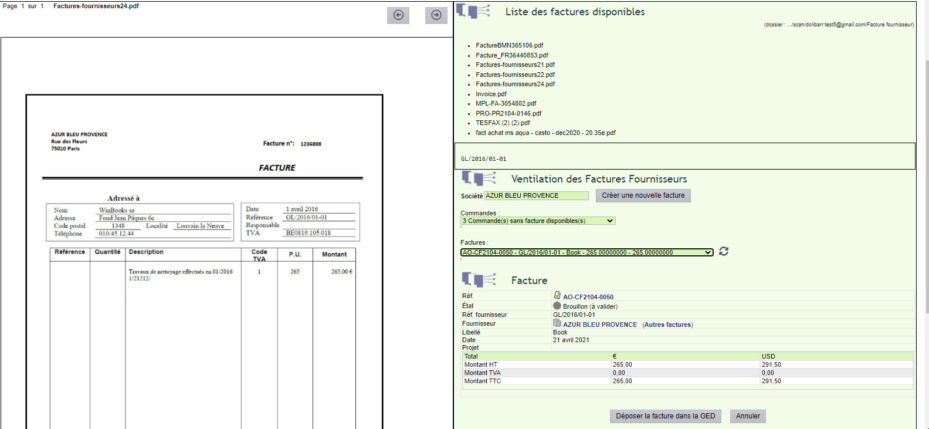
Then, a dedicated screen lets an operator file each document into the document management space of the matching supplier invoice.
The flow is deliberately two-step. First, the document lands in a waiting folder — the “Folder to explore” — with no automatic filing. Then, your filing gesture (“File the invoice in the document space”) puts it in the invoice’s document space: the document is extracted from the mail or the scanner, its place already exists, and you drop it there in one click. As a result, nothing enters your folders without human validation.
Step by step
Select the document. Three situations can occur:
Case 1
No order and no invoice exist yet. Therefore, the “Create a new invoice” button opens a new tab where you enter the invoice.
Afterwards, come back to the sorting screen, refresh the invoice list, select the invoice, then click “File the invoice in the document space”.
Case 2
An order matching the invoice exists, but the invoice does not. Select the order: its summary appears, so you can check the amounts and create the supplier invoice from it.
Afterwards, come back to the sorting screen, refresh the list, select the invoice, then file the document.
Case 3
The invoice already exists. Select it, check the amounts, then file the document in its document space.
Payment approval
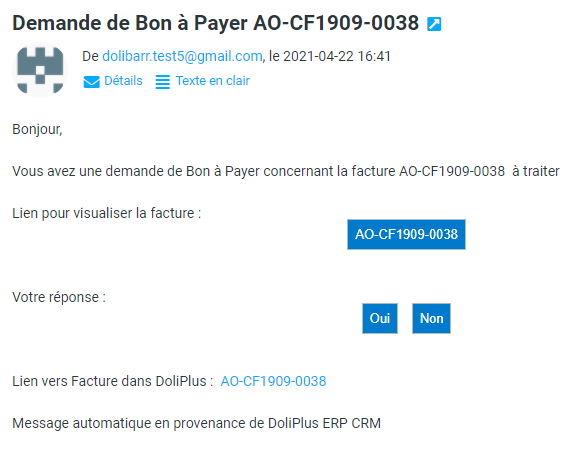
Optionally, the payment can require an approval request before it is released.
By default, DoliPlus selects the person who validated the related order, whenever one exists.
A notification e-mail lets the approver answer directly:
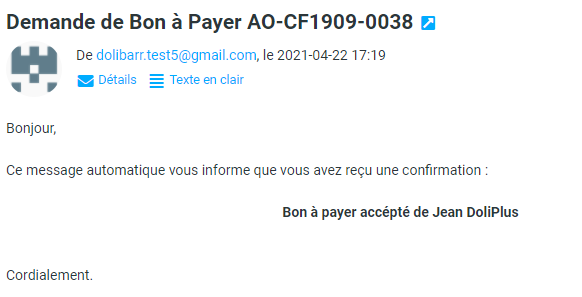
In return, the system informs the requester of the decision.
Moreover, the approval status stays visible on the invoice card and in the supplier invoice summary tables.

Read the small print without straining
Some invoices arrive scanned at an angle, printed in tiny type, or covered in minute legal notices. They still have to be entered. Therefore the DoliPlus preview adapts to what you actually have in front of you.
- A zoom bar takes the document up to four times its original size, either with the buttons or with Ctrl and the mouse wheel.
- A magnifier follows your cursor, so you can check an amount or a VAT number by simply hovering, without leaving your entry screen.
- The page is redrawn at every zoom level. Consequently the text stays sharp, instead of turning blurry like a stretched image.
Moreover, your zoom level is remembered from one visit to the next. Thus, if you usually work on dense documents, you find them already magnified.
Supplier invoice automation by artificial intelligence
This capability is activated on request on your DoliPlus: tell us you want to try it, and we switch it on for your installation.
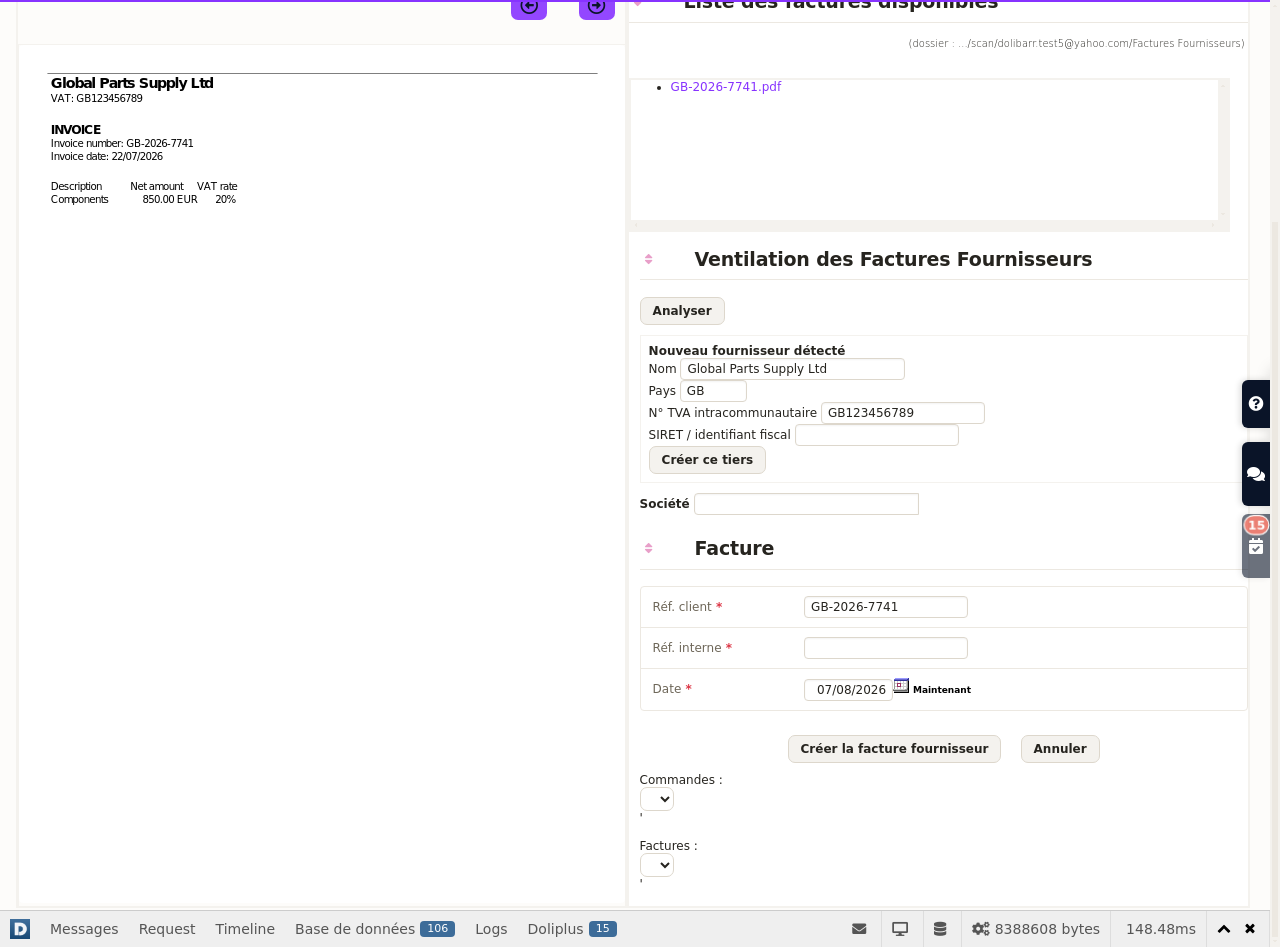
For invoices received as plain PDF files — typically those of your foreign suppliers — DoliPlus goes further than filing: it reads the document for you. Once a file is selected in the list, an “Analyse” button appears. In one click, the artificial intelligence finds the supplier in your database (or offers to create it), the invoice reference, its date, and the VAT detail rate by rate — useful when a single invoice mixes several rates.
You keep full control: every suggested value remains editable, and nothing is saved until you validate the invoice creation yourself. Supplier invoice automation therefore removes the retyping, not your judgement.
Invoice lines matched against your catalogue
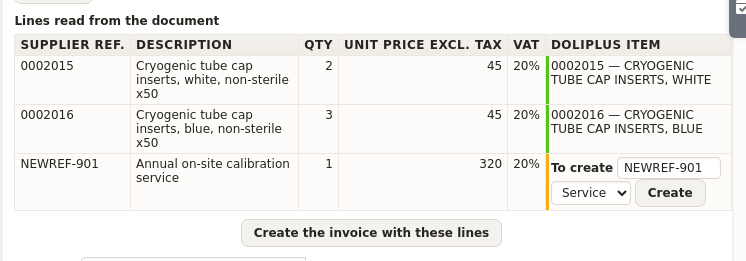
Reading no longer stops at the header. DoliPlus also reads the invoice table: your supplier’s item reference, the description, the quantity, the unit price, and even the nature of what is billed — a physical good or a service.
Each line is then matched against your catalogue. When your supplier’s reference is already known, the corresponding item appears opposite it, marked with a green edge. Otherwise, a button offers to create it, either as a product or as a service.
Your catalogue learns, invoice after invoice
Here is what really changes day-to-day work. When you create an item from a line, DoliPlus also records your supplier’s reference and their purchase price. Consequently, the next invoice from the same supplier matches on its own: the item is recognised without anyone doing anything.
In other words, the more invoices you process, the less work remains. The first pass asks for a few clicks; the following ones only need a check.
Furthermore, a consistency check runs in the background: the total of the lines read is compared with the amounts per VAT rate on the document. Should they differ, DoliPlus tells you and keeps the breakdown by rate. Therefore you never inherit an approximate detail without being warned.
Invoice created and PDF attached, without leaving the screen
One click on “Create the invoice with these lines” is enough: the supplier invoice exists, with its real lines and its linked items. Above all, you stay on the same screen, with the document still displayed on the left. The attachment panel opens just below, and the PDF joins the invoice record in a second click — together with the payment approval request, if you want one.
The same assisted reading also powers expense reports on mobile and supplier quote comparison: in all three cases, the artificial intelligence suggests, you validate.
When you buy from a supplier established outside France, that supplier does not go through the French e-invoicing circuit. However, French law still requires the buyer to report the transaction to the tax authorities.
In other words, the German or Spanish invoice you just filed no longer stops at your accounting. DoliPlus takes over, without any re-entry on your side.
DoliPlus first tells you whether the purchase is concerned, and why
Not every foreign purchase must be reported. For example, goods imported from outside the European Union already go through customs: reporting them twice would be a mistake.
Consequently, the invoice card displays a clear verdict: purchase within the European Union, services from outside the Union, or out of scope. Each line is classified as goods or services, because that classification drives the decision.
If a line is misclassified, you correct it and the verdict is recalculated instantly.
You validate, and the evidence stays attached to the invoice
The report is only sent when you click. After that, it is final: the administration does not take a submission back. This is precisely why the screen shows you the detail before sending, rather than acting behind your back.
Once the purchase is reported, the card keeps the date, the reference obtained and the classification retained. Months later, you can still explain why this invoice was reported and another was not.
For the opposite direction — your own invoices and those of your French suppliers — everything happens in the French e-invoicing circuit.
Summary table
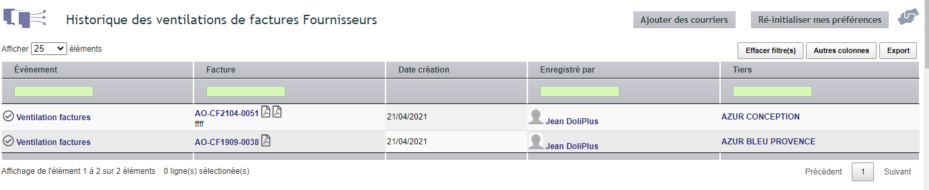
A summary table gives you supervision and control over the whole flow.
In addition, an event is created for every filing and every approval request, and each event is linked to its invoice.
Module configuration
Ready to use as soon as it is activated
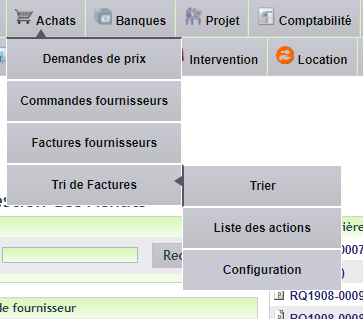
Activate the Tri module: the related menus appear in the Purchases menu, and the sorting folders are created automatically in your scanning space. Therefore, supplier invoice automation works without any prior setup.
Settings one click away
Then, the administrator adjusts the filing rules in one click, thanks to the “Settings” button displayed directly on the sorting screen. The same space also remains reachable from the Purchases menu.
Furthermore, the “Folder to explore” choice is presented as a list organised by folder and sub-folder: you spot the right location immediately, even when your scanning space holds many folders.
These folders belong to the “Scan” space of the document management system, fed by your network copier and by attachment extraction from the webmail. A folder at the root, such as “Factures Fournisseurs”, is shared by the whole team: it appears in the file explorer under “Scan(all folders)”. Moreover, when the “personal Scan folder” option is on, each user finds their own folder under “Scan”. These options are managed in the Cloud module configuration — the sorting setup page takes you there in one click.
Access rights
Finally, adjust the rights per user group or individually.

Ready to stop retyping the invoices you receive by e-mail? Contact us to activate supplier invoice automation with artificial intelligence on your DoliPlus.
To go further
Received invoices fit into your wider purchasing chain:
- down-payment invoices on supplier orders;
- validation controls before posting;
- if your supplier falls under French e-invoicing, DoliPlus tracks every status automatically — this page covers invoices received outside that circuit (PDF by e-mail, post).
