 on 15 October 2026
 Automatic email archiving: your client history fills itself in
Automatic email archiving in your ERP
Automatic email archiving files every message your team sends or receives under the right customer record, on its own. In practice, you get:
- an Archives tab on every company and every project, filled without anyone lifting a finger;
- a single list of all archived messages, with per-column filters and an export;
- a To link tab that keeps the messages from unknown senders, and turns any of them into a ready-made customer record in a single click;
- a record created with its exact nature: customer or prospect, but also supplier or private individual;
- a “Stop archiving” button that drops a bulk sender for good — by address, or better, by whole domain;
- that clean-up you can delegate: it no longer takes an administrator, a single permission is enough;
- collection from a standard mailbox or from Microsoft 365;
- attachments extracted automatically, ready to file elsewhere;
- a step-by-step setup: the dedicated mailbox, the connection, the fate of unknown senders and the test to run before you close the screen;
- a purge that keeps your database light, for the whole company or for one customer alone.
Consequently, the history of a relationship no longer lives in one person’s inbox. It belongs to the company, and anyone entitled to it finds it in seconds.
DoliPlus is the enhanced cloud edition of Dolibarr, so everything below sits inside the same software as your quotes, orders and invoices.
Archiving an incoming email by hand
Unlike the automatic method described further down, here the user pulls the archive out, then files it in the document manager.
First, open the webmail. Then right-click the message: the context menu offers to copy the source file (.eml) into the document manager.
Next, drag the message from the document manager to its destination — the documents of a quote, for example.
Finally, a double-click on the “.eml” file opens it in a new tab. You can read it there and, if needed, pull its attachments out again through the Documents tab.
Automatic email archiving, incoming and outgoing
To make customer and supplier follow-up easier, DoliPlus files incoming messages from known companies and contacts by itself. Each one lands under the Archives tab of the matching record.
Concretely, the software uses a dedicated mailbox. That mailbox receives a copy of every message sent and received by the users covered by the feature.
Therefore this archiving opens the door to genuine teamwork. As a result, you gain in productivity and in responsiveness towards customers and suppliers.
Moreover, this automation removes the need for individual filing in each inbox. Finding a message becomes simple: you just walk into the customer’s space.
Terms of use
This optional module is switched on by a decision of the organisation itself.
Indeed, business emails about a customer or a supplier are a company resource, not personal property.
Likewise, every user accepts that this information belongs to collaborative work.
How automatic email archiving works
DoliPlus first redirects a copy of each user’s emails to a dedicated mailbox (for example archive@mycompany.com). Because it is a copy, the operation stays completely transparent for the user.
The system then analyses incoming messages. If a message carries an address held in your database (company record or contact), DoliPlus immediately files the copy under the “Archives” tab of that record.
Besides, internal emails sent from DoliPlus for a quote, an order or an invoice are archived too.
In addition, if you use the built-in webmail, sent messages are filed under the “Archives” tab as well. For that, synchronise the user’s signature with the webmail.
The system also extracts the attachments of archived messages automatically. You can then move those documents to another folder through the Documents tab.
Please note: with a dedicated mailbox, mobile devices do not archive outgoing emails, unless specifically configured. Without a copy redirected to that mailbox, no archiving is possible. Reading mailboxes directly, described further down, removes this limit: an email sent from your phone is archived as well. However, an email whose sender matches no company or contact is never lost: it is kept, and it waits for you in the “To link” tab.
On a company record, only an administrator may:
- delete a line matching an email from the database,
- purge the company archive, entirely or by date.

On installation, and as a special service, DoliPlus can also pull emails from other mailboxes to rebuild the customer history. Ask your support team about it.
Finally, this archiving strengthens data protection, since it keeps a safety copy inside DoliPlus.
Archives on a project
You find the same feature on a project. An “Archives” tab there gathers the messages of the contacts declared on that project.
Where to find the list of all your archived messages
Beyond the tabs placed on each record, automatic email archiving also feeds one general list. To open it, follow this path: menu Sales, then Tools > Email archives.
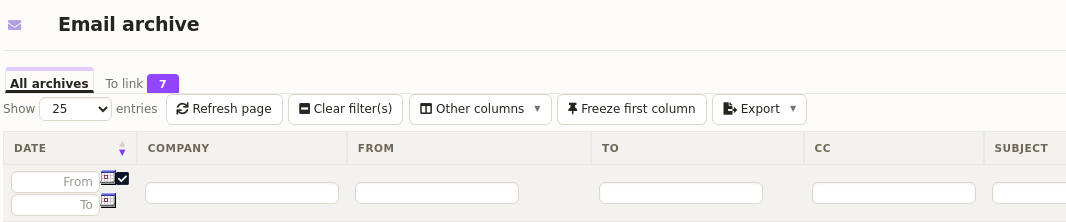
That screen holds two lists, shown side by side as tabs:
- “All archives” — every incoming and outgoing message already linked to a customer, a prospect or a supplier.
- “To link” — those whose address matches nobody in your database yet. A counter shows how many are waiting, so you see at a glance whether anything needs your attention.
Finding one particular message
Each column carries its own filter: the company, the sender, the recipient, the subject. Moreover, two fields From and To narrow the search to a period. Then the “Clear filter(s)” button resets the list in one click.
You also choose which columns appear, through the “Other columns” button. Besides, “Freeze first column” keeps the date in sight while the table scrolls to the right.
These settings belong to you: DoliPlus remembers them for your account, so you find them again on every visit. Finally, the “Reset my preferences” button restores the original layout whenever you want, while “Export” takes away the list exactly as you have just filtered it.
Opening a message from the list
The Actions column gathers the everyday gestures. Thus one icon marks the message as read or unread. Another displays it as it arrived, with its formatting and its attachments. A last one opens it in the DoliPlus webmail: from there, you reply, you forward, or you attach the message to the documents of an order, an invoice or a project.
Would you rather start from the customer? Then open the company record and its “Archives” tab: you only see the messages that concern them.
Messages with no matching company are never lost
A message whose sender is not in your database yet is kept, then gathered in the “To link” tab of that same list (Sales > Tools > Email archives). A counter shows how many are waiting. A message that comes from a colleague’s mailbox, through direct mailbox reading, is shown to that colleague only.
For each one, you see the date, the sender, the recipient and the subject. Then, four moves are available.
Read the message before you decide
First, the “Message preview” button unfolds the email under its own row, without leaving the screen or opening another tab. Therefore you read the subject, the addresses and the whole text before deciding.
The signature often tells you who you are dealing with.
The new customer record fills itself in
Then, if that sender deserves a record, the “Create the third party” button opens a form right under the message. You may of course fill it in by hand.
However, the “Fill in with AI” button does the job for you: DoliPlus reads the message, then pulls out what it actually contains.
In practice, the assistant picks up:
- the company name, the street address, the postcode and the city;
- the phone number, the email address and the website;
- the company registration and VAT numbers, whenever the signature mentions them;
- the person who writes: last name, first name, job title, direct line and mobile;
- a customer category, chosen among those you created yourself.
Nothing gets invented for all that: a field the message does not give simply stays empty. Moreover, the assistant never suggests a category that does not exist in your database.
Finally, it tells you what it relied on, so that you judge on evidence.
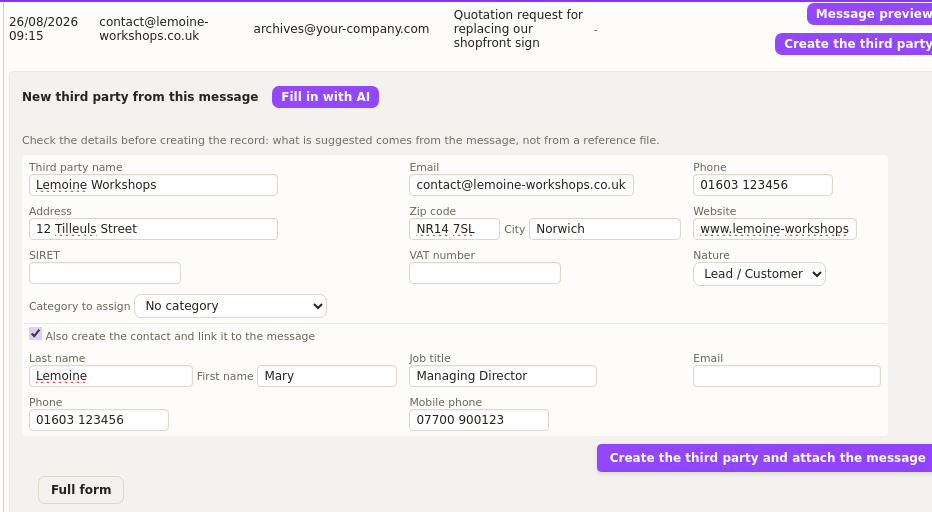
So you review the suggestion, then you correct whatever needs correcting. Finally, a single button — “Create the third party and attach the message” — creates the customer record, creates the one of its contact, assigns it to the chosen category and files the message under that new third party.
The contact inherits the company details along the way, therefore you retype nothing.
Would you rather use the usual creation screen? The “Full form” button opens it with the same information already carried over.
A supplier or a private individual, not only a customer
An unknown sender is not always a future customer. Therefore, the form lets you choose the nature of the record before you create it.
The form offers five choices: Prospect/Customer, Prospect, Customer, Supplier and Private individual.
However, they do not produce the same result:
- Supplier creates the record on your purchasing side, rather than your sales side. Moreover, DoliPlus assigns its supplier code along the way.
- Private individual keeps the record on the commercial side, but marks it as a person instead of a company. This helps, for example, when someone writes to you in their own name.
In addition, the assistant suggests the nature it recognised in the message. However, it never offers a choice your screen does not show.
Consequently, you keep the final say, because the nature stays editable until the record is created.
Linking when the record already exists
If the address now matches a known customer, the Link button is enough: the message joins its record, with its file. You may also choose yourself the company and the contact when several matches exist.
A “Link all automatically” button handles in one go those that have become recognisable. However, automatic linking steps back as soon as two different companies carry the same address: in that case, you decide.
Silencing a bulk sender
Finally, some messages call for no decision at all: they are adverts. The “Stop archiving” button therefore settles them once and for all. It unfolds a panel where you pick the scope, and each button states upfront how many pending messages it will remove.
- This address only — when the sender is single and clearly identified;
- The whole domain — this is the move that actually works, because a marketing campaign changes sender on every send while keeping the same domain.
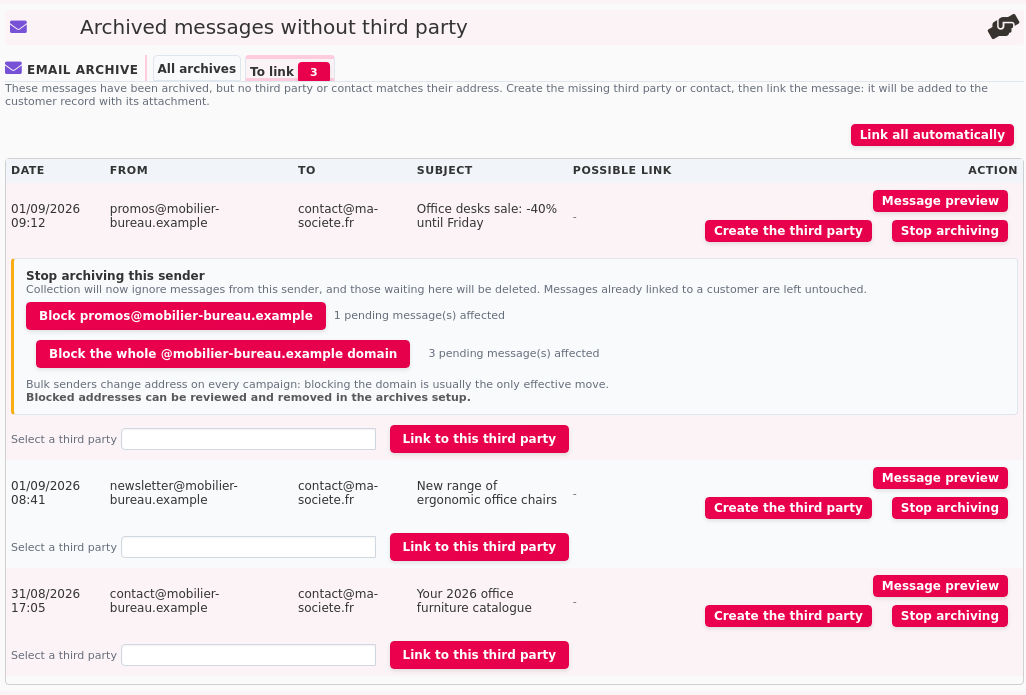
Your click then has two effects: collection ignores that sender from now on, and the messages waiting in the tab leave with their attachment.
However, nothing already linked to a customer is touched: a message filed under a record stays there, even if its address falls under the new rule.
Moreover, DoliPlus refuses to block your own archiving mailbox or your company domain. In other words, one unlucky click cannot stop your archiving altogether.
This behaviour is set in the module configuration, on the “Messages with no known company” line: Keep them for linking sends them to the “To link” tab, whereas Do not keep them leaves them aside. In Microsoft 365 mode, keeping is on by default, because the message then leaves the mailbox.
Setting up automatic email archiving, step by step
Everything is set in one place. Therefore follow this path: Setup > Modules > Archives. That area stays reserved to administrators.
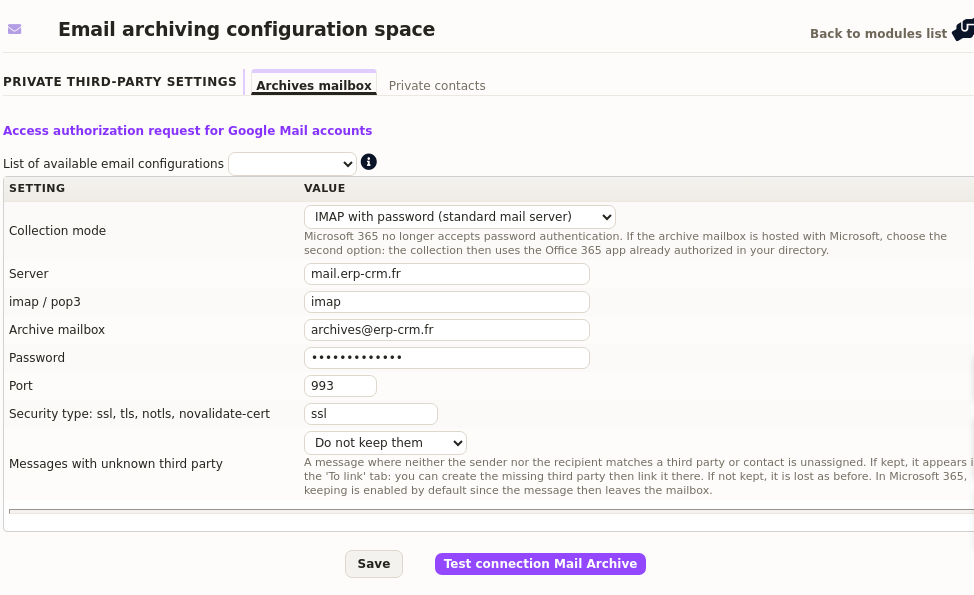
Two tabs share the work. On one side, “Archives mailbox” carries the collection; on the other, “Private contacts” handles confidentiality and exclusions.
1. Name the dedicated mailbox
The “Archive mailbox” field takes the address that collects the copies, archive@mycompany.com for example. It is the keystone of the whole mechanism.
Moreover, DoliPlus puts that address in blind copy of its own outgoing messages. In other words, a message sent from a quote or an invoice comes back to the mailbox by itself.
2. Choose the collection mode
The “Collection mode” line then opens two roads:
- IMAP with password — for a mailbox hosted on a standard mail server.
- Microsoft 365 — for a mailbox hosted with Microsoft, with no password to manage.
The form adapts to your choice at once: it only shows the fields of the selected mode. The next chapter covers the Microsoft 365 road in detail.
3. Fill in the connection
In IMAP mode, five fields describe the access to the mailbox: Server, imap / pop3, Password, Port and Security type.
A shortcut spares you that typing, however. At the top of the screen, the “List of available email configurations” picks up an account already declared in the DoliPlus webmail. Consequently it fills the server, the port and the security in one go.
Watch the consistency of those last two fields, because everything else depends on it. In practice, port 993 goes with ssl security, whereas port 143 goes with notls.
Do you use Gmail? The “Access authorization request for Google Mail accounts” link opens the Google unlock page, useful when it refuses a first connection.
4. Decide what happens to unknown senders
The “Messages with unknown third party” line settles the case of messages where neither the sender nor the recipient matches anyone in your database.
Keep them for linking drops them into the “To link” tab, where you create the missing record. Do not keep them leaves them aside, as before. We therefore recommend keeping them, since it hands those messages back to you.
5. Test before you close the screen
The “Test connection Mail Archive” button finally checks the access, without waiting for the next automatic run.
On success, DoliPlus lists the folders of the mailbox. On failure, it gives back the actual answer of the server instead of a vague message, then names the two most frequent causes: modern authentication now required, or a security type inconsistent with the port.
In addition, a counter sits at the top of the screen with the number of messages waiting in the mailbox. It loads after the page: hence the screen stays reachable even when the mail server does not answer — precisely when you need it.
6. Route a copy from your mail server
With a dedicated mailbox, the setup ends outside DoliPlus. Indeed, this method only works if your mail server routes a copy of every message to the dedicated mailbox. Would you rather do without? Direct mailbox reading, just below, needs no forwarding at all.
With Gmail, for example, open Settings / Forwarding POP-IMAP. Then add a forwarding address and confirm it with the code you receive. Finally, keep a copy of the messages on the Gmail server.
Also think of the built-in webmail: synchronise each user’s signature, then add the dedicated mailbox in blind copy from Webmail / Preferences / Identities.
Simpler: let DoliPlus read the mailboxes, no forwarding needed
You would rather not change anything at your email provider? In that case, enable the section “Archive by reading users’ mailboxes directly”, at the bottom of the “Archives mailbox” tab.
Then tick the mailboxes concerned. DoliPlus reads the inbox and the sent messages of each user, with the credentials of their webmail. It moves, flags and deletes nothing: your messages stay exactly where they are.
- only exchanges with a known customer, supplier or contact reach the archives;
- the same email received by three colleagues is archived only once;
- spam and internal exchanges stay out;
- finally, a few days of history can be taken over at activation.
A last box also files exchanges with unknown senders in “To link”. Rest assured: everyone only sees the messages of their own mailbox.
💡 Good to know: Microsoft 365 mailboxes are read as well, through your company’s Microsoft connector (permission to read messages). Their box can be ticked as soon as that connector is set up.
Collecting a Microsoft 365 mailbox
If your mail runs on Microsoft 365, DoliPlus reads the mailbox directly, without any redirection to set up.
Choosing the collection mode
The configuration screen offers the collection mode: a standard mailbox, or Microsoft 365. The path is Setup > Modules > Archives > Archives mailbox.
In Microsoft 365 mode, the connection uses the Microsoft connector already set up on your installation. Consequently, there is no second address to enter.
The folder to collect
The “Folder to collect” line offers the real list of folders in the mailbox. Leave inbox for the reception folder, or point to a subfolder if your mail rule files the copies there.
What happens to the message once archived
The “After archiving a message” line decides what becomes of the original. Four behaviours exist, and the default one sends the message to the bin.
Therefore, if you expect to find your messages where they were, choose another behaviour. A message sent to the bin stays recoverable, but only through the “Recover deleted items” function of Microsoft 365.
Setting aside unrecognised senders
You can also point to a folder for senders that DoliPlus does not recognise. The screen creates that folder for you if it does not exist yet.
A dedicated application (optional)
For a large volume, a dedicated Microsoft application isolates the archiving from your other connectors. It remains optional.
Checking that everything works
The Test Microsoft 365 connection button checks the access and lists the folders of the mailbox, with the number of messages and unread messages in each. Hence you see immediately whether collection can run. A marker also shows the last message processed.
Keeping your database light: purging older messages
Automatic email archiving works without a break, and that is exactly the point. After a few years, however, your database ends up carrying a lot of weight. Moreover, a business message is not meant to stay there forever.
DoliPlus therefore offers two purges. The first sweeps the whole company, whereas the second applies to a single customer.
Purging the whole database beyond a date
First, open the configuration screen again, then scroll all the way down to the “Maintenance” section.
A single line waits for you there: “Global purge for dates earlier than”. Then pick the date and click “Launch”.
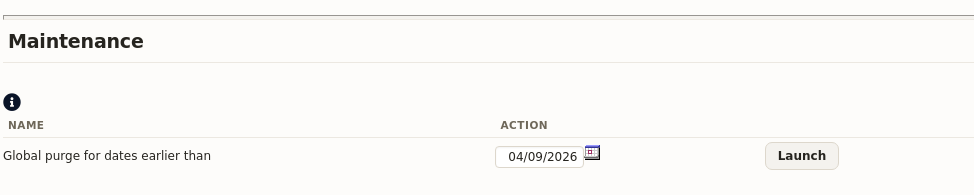
DoliPlus then deletes every archived message older than that date, across all your customers. Three things go together: the line in the list, the message file itself, and the attachments extracted from it.
The job runs in the background, because it sometimes covers tens of thousands of messages. Consequently you keep working meanwhile, and you receive an email as soon as it finishes.
Two safeguards finally limit the damage:
- a future date is refused, since it would empty the whole archive in a single click;
- messages attached to a contact marked as private are never taken by this purge.
Purging the history of one customer
Would you rather deal with one customer in particular? Then open their record and the “Email archive” tab. The purge button waits there for the administrator.
A window then asks which kind of cleanup you want:
- Clean Up All — the entire archive of that customer disappears, folder included;
- By date earlier than — only the messages older than the chosen date go away.
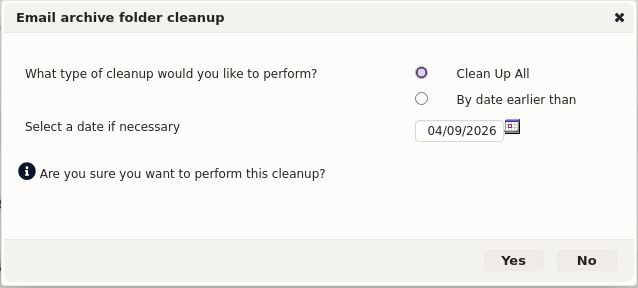
Here too, the job runs in the background and warns you by email when it ends.
Finer still: from that same list, an administrator deletes one single line, or a selection of ticked lines. Hence this road suits a message archived by mistake perfectly.
Deleting a customer also erases their messages
There is finally a third road, and you take it without thinking about it. Indeed, when you delete a customer record, DoliPlus removes every message archived under it straight away, files included.
That road leaves nothing behind, not even the messages of a private contact. Therefore it answers an erasure request directly: delete the record, and its mail history goes with it.
Conversely, would you rather keep the trace of those exchanges? Then do not delete the customer record. Make it inactive instead: the history stays readable.
The clean-up that runs by itself
Every purge finally ends with an automatic sweep of the storage. DoliPlus removes two kinds of leftovers there.
On one hand, folders belonging to a customer who no longer exists in your database. On the other hand, files left on the server with no matching line in the list.
In other words, the disk space is really freed — you have nothing else to do.
Access and confidentiality of archived messages
Rights govern who reads what. A contact may be reserved to one or several colleagues; in that case, only they see the archives attached to the contact. A sensitive file can thus be shared between a manager and their assistant, for instance.
Furthermore, deleting an archived line stays in the hands of an administrator, on the company record as on the project. The purge itself, however, only runs from the company record.
The “Private contacts” tab, two settings in one
That tab of the configuration screen actually holds two separate lists.
The first one declares the private contacts. Type the contact’s name, choose the authorised user, then click “Reserve a contact”. Add one line per authorised colleague; the bin of a line removes the access.
From then on, the messages exchanged with that contact leave the view of the other users. However, messages addressed to the company itself stay visible to everyone: only the contact is protected, not the whole customer record. Finally, a company record is not protected that way — to keep its archive unshared, simply leave its email address empty.
The second one lists the addresses excluded from archiving, in two columns: messages coming from, and messages sent to. A full address drops that address; an entry starting with an at sign, such as @example.com, drops the whole domain and its subdomains.
That is precisely the list fed by the “Stop archiving” button seen above. Therefore you read it back here, and you remove an entry added by mistake.
Confidentiality that follows the contact everywhere
The protection does not stop at the “Archives” tab. It also covers the calendar and the history of the customer record, the recorded emails and text messages, after-sales and CRM files, and electronic signatures. Moreover, a direct link to the message is refused to an unauthorised colleague, and these messages stay out of the smart search.
However, the author of an email or a text message always finds it again: a salesperson never loses sight of what they sent themselves.
Who is allowed to see what
Three permissions are finally set user by user, from their record, “User permissions” tab:
- Read emails — access to the archived messages;
- Read older archives — documents inherited from previous versions;
- Stop archiving a sender — the bulk-mail clean-up, closed until you grant it.
The purge, on the other hand, opens to no permission: it stays the business of administrators.
Related reading
The Microsoft 365 connector — the wider offer around Outlook mail, calendar and OneDrive.Going further
See this chapter · See this chapterRelated Entrées
