 on 25 October 2026
 DoliPlus Pricing Management: The Right Price, Automatically
DoliPlus pricing management lets you set your sales and purchase prices by tier and by customer, ensuring your quotes, orders and invoices always reflect the correct price:
- multiple sales price tiers for different distribution channels;
- custom negotiated prices for individual customers;
- import and update your price lists via simple CSV file, with AI assistance for supplier pricing;
- full management of purchase prices by supplier;
- a dedicated interface to update your sales prices in just a few clicks.
This eliminates manual re-entry and pricing errors across your entire sales cycle, from quote to invoice.
Sales price management
Multiple price tiers
DoliPlus lets you create multiple sales price tiers. You can assign different prices to the same product based on your distribution channels. For example, for Product A:
- retail customer price;
- distributor price;
- export price;
- in-store and POS price;
- e-commerce price (via connector).
Configure the number of tiers in the Products module settings.
Naming price tiers
DoliPlus also lets you name each price tier from the general dictionary. Note: Tier 100 remains reserved for custom customer pricing.
When creating quotes or invoices, a tier selector appears. Choose the price level before adding the product, and the correct price auto-populates.
Quantity-based tiered prices
When quantity-based prices are enabled (see “Enable customer and quantity-based pricing” below), the sales price tab of a product offers, on each tier, the “Enable quantity-based pricing rule” button (product creation permission required):
- Click it on the desired tier and enter the first price break (minimum quantity, price). The entry box warns you before saving: on this first save, the usual prices of this tier are replaced by the grid; the tier line then displays “See price table below”.
- “New price by quantity” adds the following price breaks, in the tier’s “Quantity-based price” tab. The VAT is that of the first price break.
- In a quote, the product search then offers one choice per price break; the choice fills in the quantity with the minimum of the price break.
“Remove quantity-based pricing rule” (after confirmation) deletes the whole grid: the tier is left without a price, which must be entered again.
Customer pricing
You can set a default price tier for specific product-customer combinations.
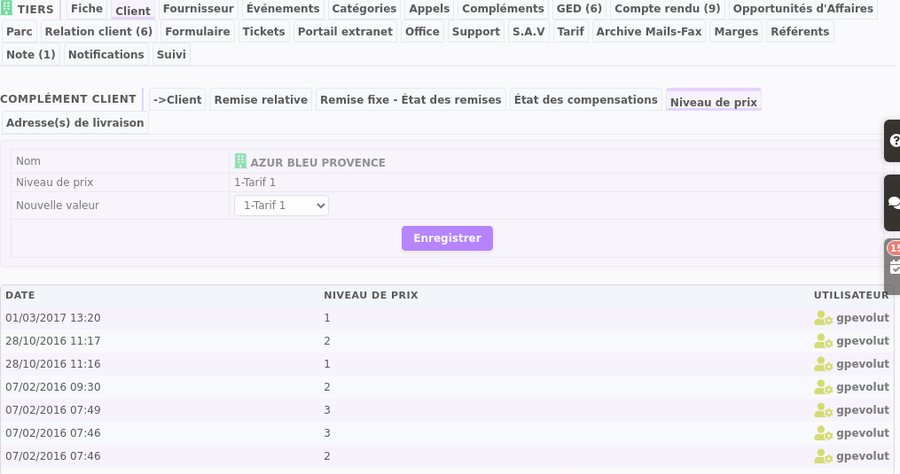
Custom customer pricing
In the Pricing tab of customer records, enter customer-specific net prices:
- net price per customer;
- additional discount calculated on this net price;
- a “Min quantity”: when chosen in a quote, it becomes the line quantity;
- easy quantity-based price variations.
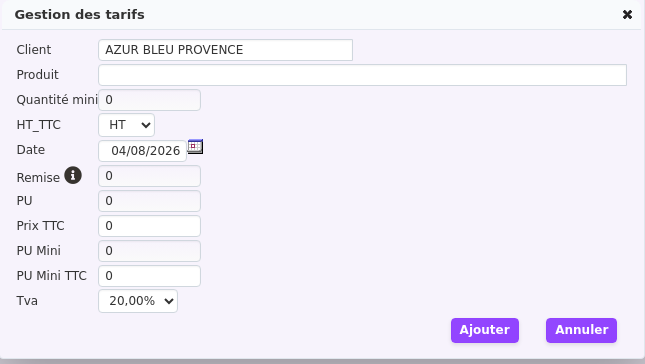
A global view is available under Sales → Tools → Pricing Management (submenu 15), which also allows bulk deletion of outdated prices.
Negotiating a price for a customer, step by step
- On the customer record, open the “Price list” tab: it gathers the customer’s “Negotiated prices”.
- “New price list” (“Update sale prices” permission) opens the entry window with the customer already filled in. Type a few letters of the reference or label and choose the product.
- “Min quantity”: when chosen in a quote, it becomes the line quantity. “Discount”: the percentage carried over to the quote line.
- Enter the “Unit price” excl. VAT, or choose incl. VAT and enter the price incl. VAT. “Min unit price” is a floor: in a quote, order or invoice, a line sold below it, discount included, is rejected (“The selling price must not be lower than the minimum for this product…”).
- “Add”: the line appears in the list.
In a quote, order or invoice for this customer, the product search first offers “Customer price list” at this price, with its date, discount and minimum quantity. On the price line, the “For sale” toggle suspends the price in one click without deleting it (it is no longer offered), the pencil edits it, and the bin deletes it after confirmation. On a product record, the “Customer prices” tab lists the negotiated prices for this product, read-only.
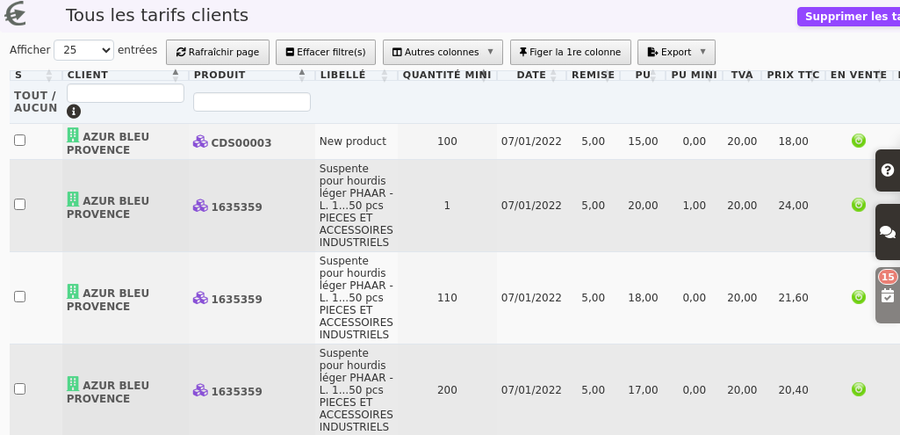
All customer prices in one list
Line 15 “Customer price list” of Price list management: “All customer price lists”, a table of all negotiated lines (customer, product, minimum quantity, date, discount, unit price, minimum unit price, VAT, price incl. VAT, for sale). Filter by customer (multi-criteria search: name, code, email…) or by product, export the table, and open a customer’s “Price list” tab by clicking their name. To clean up, tick the lines (“S” column, “All” / “None” links), then click “Delete selected price lists” and confirm: the deletion is permanent.
Import customer prices via CSV
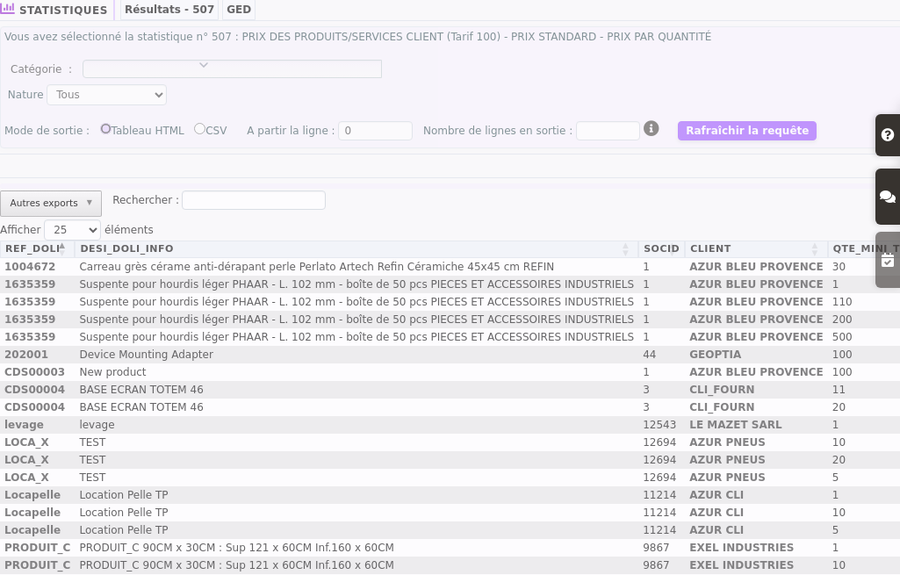
Use price tier 100 when creating sales prices. You can also extract existing data via Query 507 (Tools → Export Wizard).
In the CSV file, specify the customer in the “CLIENT” column. Optionally include minimum quantity and discount. Import using “ID_TARIF” as the search key, then verify results.
Note: Each time DoliPlus updates, it deletes and recreates the lines. Therefore, the ID_TARIF changes with each update.
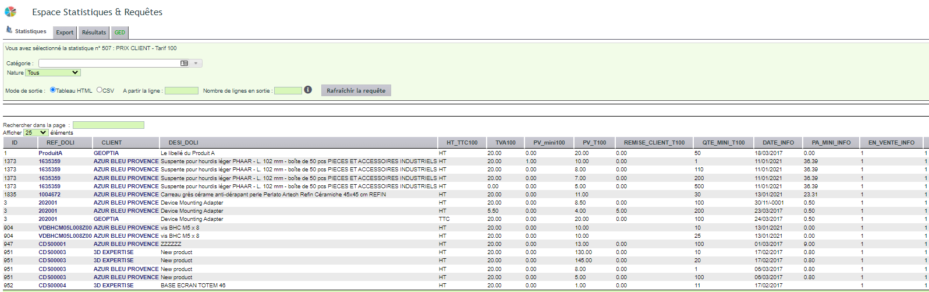

Two optional columns refine each line: QTE_MINI_T100 for the minimum quantity required for the price to apply, and REMISE_CLIENT_T100 for the associated customer discount.
You can also start from your existing prices: the query 507 — CUSTOMER PRICE, tariff 100, in Tools / Export Wizard / DoliPlus Export, generates the file ready for editing.
Managing purchase prices
Add a purchase price
To enter a purchase price, open the product, then the “Purchase price” tab. Next, click “Add supplier price”.
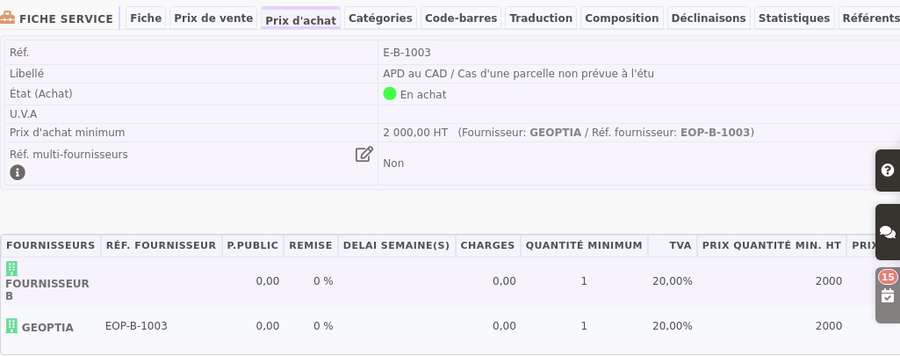
You can enter the same supplier reference multiple times to create quantity-based pricing. Additionally, the entry history is displayed below.
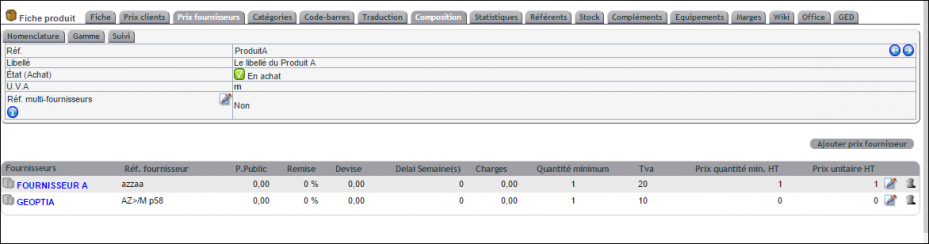
Entries are made on the product record, under the “Supplier prices” tab, then click “Add a supplier price”. You can enter the same supplier reference multiple times: this is how you create quantity-based purchase prices.
Import sales and purchase prices via CSV
To manage your price updates more easily, DoliPlus offers an export-then-import mode via spreadsheet.
Crucially, a single operation creates or updates your multi-level sales prices and supplier purchase prices. You can even integrate additional data: packaging, custom fields, etc.
This is a real productivity boost. Importing supplier catalogs speeds up your quoting, then your orders once the quote is signed. So remember to request digital versions of their price lists.
Align a supplier’s entire catalogue at once
Your supplier changes its terms or disappears? From the third party record → Supplier tab, the “List of purchased products” button, at the bottom of the page, opens the list of its products. At the top of that list, to the right of the title, an administrator can then put all its products on sale or off sale, set them as purchasable or not, put back on sale those with stock, or delete all its purchase prices. These bulk operations are detailed in the chapter Edit or delete products in bulk.

Create a sales and purchase price list
First, download the Excel template from Tools → Import Wizard → Import Products + Purchase Prices + Multi-class Selling Prices. Then follow the instructions in the “Notice” tab.
A few rules apply:
- column order doesn’t matter;
- respect the case (capitalisation) of column names;
- not all columns are mandatory;
- for large numbers (barcodes), format the column as number to avoid scientific notation;
- in the SUPPLIER column, enter the name exactly as it appears in the customer/supplier record. Also ensure this record is ticked as “Supplier”. Otherwise the line won’t be recognised and the import will stop there.
Calculating purchase price
The columns UNIT_PURCHASE_PRICE, PURCHASE_PRICE and QUANTITY define your purchase prices. DoliPlus then automatically calculates:
- if UNIT_PURCHASE_PRICE is missing: UNIT_PURCHASE_PRICE = PURCHASE_PRICE / QUANTITY (e.g. 100 / 10 = 10);
- if PURCHASE_PRICE is missing: PURCHASE_PRICE = UNIT_PURCHASE_PRICE × QUANTITY (e.g. 1.2 × 10 = 12);
- if QUANTITY is missing: quantity defaults to 1.
Cancelling an operation
The import runs as a background task executed approximately every 5 minutes.
It cannot be stopped once launched. However, a button allows cancelling the scheduled task if it hasn’t already started, though its effectiveness isn’t guaranteed.
Convert and import the CSV file
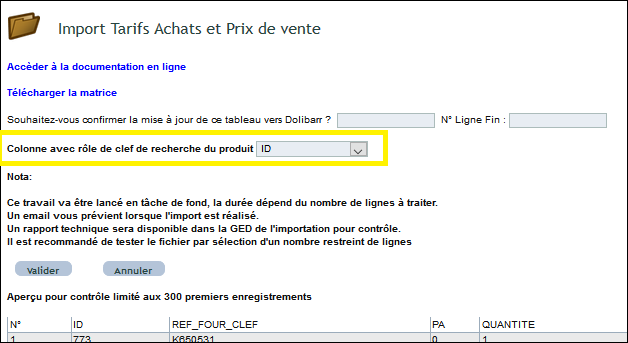
Next, convert your Excel sheet to CSV format, then upload it to the protected “Purchase Imports” folder. Finally, select it via the file explorer: a table preview confirms its validity. Then validate the import by completing the required fields.
Key points to note:
- processing runs in the background (5-10 minutes); you’ll receive an email upon completion;
- test first with a small number of lines;
- as a precaution, DoliPlus backs up the database before importing.
Without an email account, you won’t be notified
The completion email is your only feedback on the import. The banner displayed after validation never changes. It confirms the job has been queued, but doesn’t show progress.
In DoliPlus, every automated email is sent from the user’s own email account. It doesn’t use a generic server address. Thus, messages are sent from your personal email.
Therefore, without a configured email account, no notifications can be sent. The import runs normally, but you receive no alert. You might think the job is stuck, when in fact it completed long ago.
We recommend checking this before your first import. Go to Home → Configuration → Communication → Emails. Then configure the sending account for each relevant user.
If the import appears stuck
First, wait a few minutes. Large files take time to process. Additionally, the pre-import database backup extends the processing time.
Next, check your file. The import stops immediately if a line references an unknown supplier. Verify every name in the SUPPLIER column.
Finally, if no email arrives, open a support ticket. We’ll check the execution details and inform you exactly why it stopped and which line was affected.
Updating a price list via CSV
Finding the right product
For updates, one column serves as the search key. You have three options:
- the ID column from a 505 export (preferred);
- the REF_DOLI column containing the DoliPlus reference;
- the REF_SUPPLIER_KEY column containing the supplier reference.
You select the key column when validating the file. Only columns present in the file will be updated.
Starting from a DoliPlus export
Have your prices changed since the last import? First, export the data via Tools → Export Wizard → DoliPlus Export, query 505 (Supplier product prices and multi-level sales prices). Then modify the file and re-import it. Indeed, the same tool handles both creation and updates.
The export is launched via Tools → Export Wizard → DoliPlus Export,
query 505 — SUPPLIER PRODUCT PRICES and MULTI-LEVEL SALES PRICES.
COMPTA_ACHAT, COMPTA_VENTE and CODE_BARRE_EAN13 are
exported with a single apostrophe. This is intentional: without it, Excel would transform these values
on opening. Leave it in place.
Update prices via a dedicated interface
For products with volatile pricing, a dedicated interface updates only the sales price, quickly. The Pricing module must be enabled and permissions adjusted.
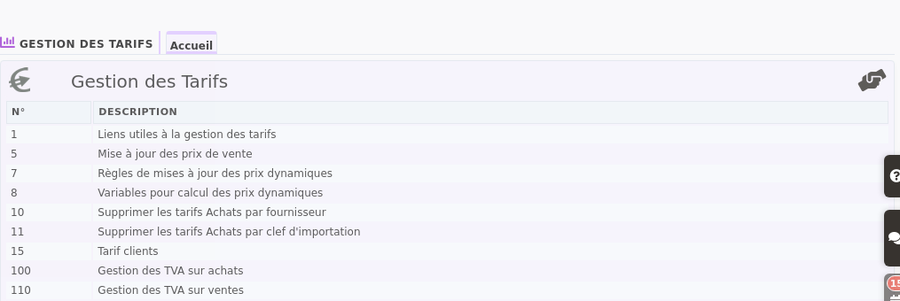
To access it, open the Sales → Tools → Pricing Management menu, then select option 5. Note: you can also update prices from a PrestaShop site using this interface.
Watch the video tutorial on modifying sales prices.Step by step, re-pricing a selection of products:
- Line 5 “Sales price update”: each increase is prepared in an “update report”, which keeps a record of it. Click “Create a new price update report”, give a unique title (“2027 increase”) and choose the price tier to re-price, then confirm with “OK”. The report is created with Draft status, at the top of the list.
- Open it: all products for sale are listed. Narrow down the list (category, supplier, start of reference + Enter), then tick the products to re-price (“Reg.” ticks the whole page): each tick is saved immediately.
- Switch to “Update mode”: only the ticked products remain. Choose “Add” or “Decrease”, type the percentage, click “Validate” then “OK”: the new prices are calculated in the report; nothing is changed on the products yet.
- The “New price excl./incl. VAT” column can be corrected by hand on a line (for a round price); the value is saved when you leave the field.
- “Update prices” then “OK”: each ticked product receives its new price on this tier. The report moves to “Completed” and keeps the old and new price of each product.
If dynamic price rules start from this tier, the other tiers are recalculated straight away. “Duplicate” provides a starting point for the next increase; “Reopen” puts the report back in progress.

Calculating one price tier from another (dynamic prices)
When dynamic prices are enabled in the product settings, Price list management offers two extra lines (“Update sale prices” permission to create or edit):
- Line 8 “Variables for dynamic price calculation”: “New”, a code in capitals without spaces (HAUSSE), a description and a value (3 for 3%), then “Add”. The formula uses it in the form #global_HAUSSE#; changing its value later changes all the rules that use it at once, at the next recalculation.
- Line 7 “Dynamic price update rules”: “New”, a title, then “Applicable to” — “Price list” calculates one tier from another for all products, “Selling price” creates a formula to attach product by product on the sales price tab.
- “Source price list” (the tier you edit by hand) and “Destination price list” (the recalculated tier). Only one rule counts per destination tier: if two rules target the same tier, the oldest one wins.
- “Expression”: one line per value, for example “price_ht = #price_ht_1# + (( #price_ht_1# * #global_HAUSSE# )/100)”, then “price_base_type = 1” (price excl. VAT) and “tva_tx = #global_TVA20#”. Without these last two lines, the calculated price drops to 0 or loses its VAT.
- “Product to test the rule”: the formula is calculated on it when saving; if it is wrong, DoliPlus displays the error and keeps your entry. “Add”.
The rule is active (green dot: one click suspends it). Every time the price of the source tier changes, on the product record or through an update report, the destination tier is recalculated.
Enable customer and quantity-based pricing
Setup › Modules, “Price list” line, the key icon on the right (administrator) — “Price list configuration”:
- “Enable customer price list management”: each customer record gets the “Price list” tab (multiple product price tiers are also required).
- “Enable quantity-based price list management”: quantity-based tiered prices on a product’s price tab.
Each switch is saved as soon as you click it.
The “Price list management” toolbox
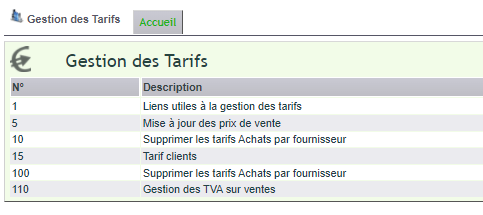
Sales › Tools › “Price list management” menu (administrator): a numbered list of tools; clicking a line opens it (the “Home” tab takes you back).
- 1 “Useful links for price list management”: price list name dictionary, nomenclature of popular products, DoliPlus export and import, price list configuration, quantities sold over a period, products by supplier, product statistics (“Update sale prices” permission also required).
- 5 “Sales price update”, 7 and 8 (dynamic prices), 15 “Customer price list”: described above.
- 10 “Delete supplier purchase price lists”: tick suppliers then “Delete purchase prices”: ALL their purchase prices and supplier references are erased.
- 11 “Delete purchase price lists by import key”: choose the key of an import (the last 20, with their date) then “Delete”: the purchase prices created by this import are erased, whatever the supplier. Handy for undoing a failed import.
- 100 “Purchase VAT management”: replaces one VAT rate with another on all supplier purchase prices that use it (“VAT already in the price list”, “New VAT to apply”), and displays the number of lines modified.
- 110 “Sales VAT management”: same action on all sales prices (all tiers, customer prices and price breaks included), with prices incl. VAT recalculated from the excl. VAT price. The default VAT rate of the product record does not change. Along the way, the tool deletes the sales prices still attached to deleted products, and the result message gives their number.
Tools 10, 11, 100 and 110 are reserved for administrators and ask for a confirmation (“Yes” / “No”) that recalls their scope. Once confirmed, they cannot be undone. Export your prices (Tools › Export Wizard, query 505) before running them.
Bulk translate products
Your instance must be in multilingual mode, and your products already recorded. Then download the matrix via Tools → Import Assistant → 10005 (Product translation import). Finally, apply the same instructions as for creating a price list.
Top sellers and favourite products
The right price isn’t enough: the sales rep must also propose the right product. DoliPlus provides two key indicators.
First, the 525 statistic Products/services by popularity — top sellers ranks your references over your chosen period. Second, when selecting a product in a quote or order, a colour code highlights those that sell best across the entire history — the information appears at the moment of decision, without leaving the input.
Popular products and top seller rankings.
