 on 25 October 2026
 Email marketing software for CRM: your newsletter drafted from a two-line brief
The email marketing software for CRM built into DoliPlus turns your customer file into a campaign, and hands you back everything else:
- a first draft written by the AI assistant from a two-sentence brief;
- your recipients picked straight from your customer file, with no retyping;
- your export tracked on screen, from the moment you confirm it to the result;
- your results one click away: the campaign’s « Statistics » button opens its Brevo report (opens, clicks, top links).
In short, you go from customer file to sent campaign without ever retyping an address.
DoliPlus is the enhanced cloud edition of Dolibarr, so everything below sits inside the ERP your teams already use.
Why a dedicated email marketing software for CRM?
This connector relies on an external sending service, with a separate technical address. Indeed, that point matters: it protects your main mail server.
Without that precaution, your domain name could be flagged as a spam sender. As a result, your ordinary business mail would be rejected, or filed as junk by your recipients.
Therefore DoliPlus relies on the French company Brevo. This well-known platform lets you build campaigns, manage contact lists and analyse your results.
Finally, its pricing remains a strong argument. The self-service approach lets you send campaigns on your own, at a reasonable cost.
How it works
Brevo is a standalone service, usable on its own. However, DoliPlus makes the whole thing simpler: it talks to Brevo transparently to prepare and track your campaigns.
To get started, you simply need a Brevo account, free at minimum (9,000 emails per month depending on the current plan). Brevo handles delivery and statistics. Your campaigns go out under your name, while using its technical address in the background.
Setting up the connection
1. Open a Brevo account
First, create your account on the Brevo website, then confirm your email address.
Next, retrieve your API key from your account settings at https://app.brevo.com/settings/keys/api.
Finally, authorise the IP address of your DoliPlus session — shown on your configuration screen — to use that key.
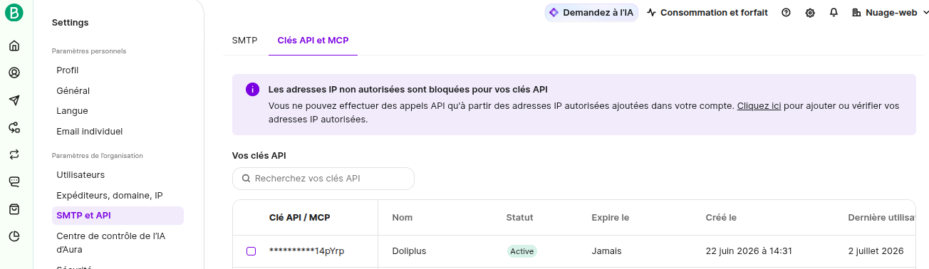
2. Configure DoliPlus
The console sits in the Marketing › Brevo › « Mailing configuration » menu. Enter your API key there: it secures the link between DoliPlus and Brevo.
Then refresh the page. If everything is correct, your Brevo account details appear at the bottom.
Linking your Brevo account, step by step:
- Open the Marketing › Brevo › « Mailing configuration » menu.
- In Brevo, create a v3 API key (the page’s « API V3 key » button) and paste it into « Brevo V3 API key ».
- Brevo rejects calls from an unknown address: add the IP address shown on the page to your Brevo account (My profile, Security, Authorized IP addresses).
- Under « Default settings », choose the « Sender email (From) » and the « Return email (Reply-to) » offered on your campaigns. The list comes from the senders validated in Brevo; « Create a sender » opens Brevo.
- Click « Save ». When the key is right, the « Brevo account details » section appears at the bottom (plan, remaining credits); if it is missing, check the key and the IP address.
For SMS, the « Brevo SMS » tab of the telephony settings reuses the same key; there you enter the name that will appear on the phone (11 characters, no spaces).
3. Configure your Brevo account
Finally, take care of the Brevo side. Several settings matter:
- the default parameters of your campaigns;
- the unsubscribe page, worth customising;
- your senders, signed with your domains (SPF, DKIM);
- Google and social media tracking;
- optionally, a dedicated IP to steer your deliverability.
Two sentences of brief, and your message is written
Getting started is the real obstacle to a newsletter: people postpone the send because they do not know where to begin. That is why the campaign record offers a « Write a first draft » button.
Concretely, you describe in one or two sentences what you want to say — an autumn promotion, a new product, an invitation to a trade show. Then the assistant proposes a complete subject line and body, in your language and on your topic.
Above all, nothing is sent and nothing is saved on its own. You read it, you correct it, you keep what suits you: the decision to send stays entirely yours. In other words, the assistant saves you the start, not the control.
Running your first campaign
Step 1 — Design the content
For layout, use the Brevo editor. Indeed, a gallery of templates helps you compose a good-looking newsletter. Above all, do not forget the unsubscribe wording in the footer.
If this is your first time, two pages of Brevo’s help centre are enough to get through: create an email template for the steps, and an overview of the drag-and-drop editor to understand the screen. No code is needed: you drag blocks of text, image or button into place, and the template is then reused for every campaign.
Step 2 — Create the campaign in DoliPlus
Once the campaign is tested, come back to DoliPlus (Marketing menu) to create your campaign. In the form, simply select the name of the campaign created on Brevo.
Step 3 — Manage the contacts
Then pick your contacts from the « Dolibarr recipients » tab, using the segmentation of your customer file. After that, in the « Brevo interface » tab, create your folders and lists.
To target a category of contacts (trade show guests, newsletter subscribers…), choose the « Add contacts by contact categories » selector in the « Dolibarr recipients » tab, then the category: its contacts join the selection.
Each row of the « Dolibarr recipients » tab is a source, with its number of unique addresses and an « Add » button; you can combine several:
- the contacts of your third parties: all of them (prospects, customers, suppliers…), by job title or position, or by third-party category;
- the contacts of a contact category;
- the third parties themselves, by type or by category, and the third parties whose contracted service has expired;
- members, all of them or by category, if the Members module is enabled;
- DoliPlus users, and a text file (email;last name;first name;other).
At the bottom of the page, « Selected recipients » lists each address with its origin; the same address appears only once. « Clear list » starts again from scratch, with no confirmation. This selection can be changed as long as the campaign is a draft.
Imported contacts must sit in a folder and a list. For example: folder « Trade shows », list « Paris ». Finally, confirm the export with the « Export contacts to Brevo » button.
One caveat: if you edit a contact, remove it from the selection then add it again. Likewise, after any change, resynchronise your contacts to Brevo.
Step 4 — Launch the campaign
Then go to the Brevo interface to launch or schedule your campaign.
Finding a campaign
Open the Marketing › Brevo › « Campaign list » menu: for each campaign, you see its reference, title, creation date, number of addresses, last send date and status (Draft, Approved, Partially shipped, Fully shipped). The box under « Title » also searches the subject and the message; the one under « Ref. » searches by number. Click the reference to open the campaign.
Know where your export stands, without leaving the screen
When you confirm “Export contacts to Brevo”, the screen stays with you until the end. Indeed, it shows the outcome as soon as it is known: export completed, or interrupted and ready to run again.
Therefore, you know straight away whether your recipients went through. As a result, you move on to the send with confidence.
Moreover, your recipient list stays in place as long as the export has yet to complete. Your contacts already held in Brevo therefore remain available, and you can run the export again whenever you choose.
Six campaigns worth sending this year
The hard part is never sending a message: it is knowing what to send, and to whom. Here are six subjects that work, from the simplest to the most profitable. For each one, the text matters less than the recipient list — and that is where your business software makes the difference: it knows who bought what, and when.
A date in your calendar
Open days, trade shows, webinars, annual closing, new opening hours. These campaigns are the easiest to write, and they get the best open rates: the reader finds useful information, not an offer.
Who to target: All your customers, or only those in one region or one industry.
How to build the list: The third parties by category selector, or by type if you want to separate customers from prospects.
A new product worth knowing about
A product entering your catalogue, a service you add to your offer. Announced to everyone, a novelty dilutes. Announced to those who already buy the neighbouring family, it lands.
Who to target: Customers who already buy in the same product family.
How to build the list: Put those customers into a category once, then target it. It will serve again for every new product on the same shelf.
A contracted service reaching its end date
This is the most profitable campaign, and the least used. A customer whose subscription, maintenance or warranty has just expired is already convinced — they simply need reminding before they arrange something else.
Who to target: Customers whose specific service has come to an end.
How to build the list: A built-in selector does it for you: pick the service reference, and DoliPlus lists the customers whose service expired, with its end date.
The customer who stopped ordering
Nobody saw them leave. They complained about nothing, they simply stopped ordering — and six months later nobody thinks about them. A message asking how they are costs less than winning a new customer.
Who to target: Those whose last order is starting to date.
How to build the list: A ready-made list is waiting for you in Lists & reports: “Customers with no order in the last 6 months”. Sort it by revenue to start with those who were worth the most, export it, then import it into your campaign with the e-mails from a file selector. See the list.
The six-month-old launch nobody picked up
You launched a product, it works — but only with a handful of customers. The others did not refuse it: they do not know it exists. This is catching up, not chasing.
Who to target: Your active customers who never ordered that particular product.
How to build the list: This one does not exist ready-made yet: build it in Lists & reports, export it, then import it into the campaign as above.
The prospect left without a quote
They entered your database and nobody ever quoted them. Following up costs nothing, and they may still be waiting.
Who to target: Registered prospects who never received a proposal.
How to build the list: The Prospects without a quote indicator on your third parties screen already counts them. One click opens the exact list.
One piece of advice for all six: start small. A campaign sent to thirty well-chosen customers earns more than a message blasted to the whole database, and it teaches you what your readers care about.
Read your campaign results
A campaign is only worth what it brings back. The figures of each campaign are kept by Brevo: on the campaign, the « Brevo Interface » tab carries a « Statistics » button that opens its report.
You read there:
- messages sent and actually delivered;
- opens, including unique opens;
- clicks and the number of people who clicked;
- hard and soft bounces, unsubscribes and complaints;
- the most followed links and the breakdown by device.
Unsubscribes can be checked in Brevo too.
Your Marketing screen: the whole picture at a glance
A campaign record gives you the detail. However, the overview was missing: how many campaigns in total, which ones went out recently, and on which channel.
That is exactly what the Marketing tab of your main menu now shows.
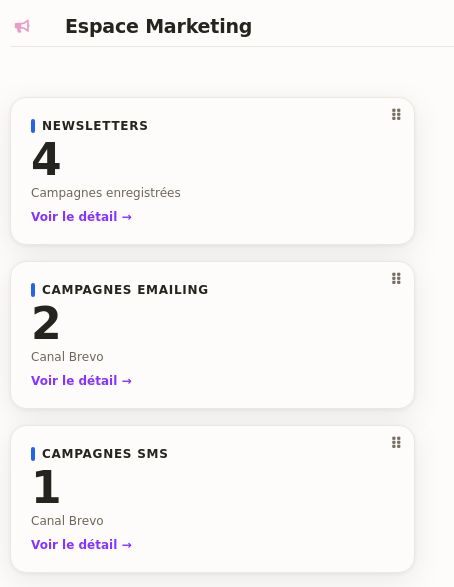
Three indicators place you immediately: your saved newsletters, your email campaigns and your SMS campaigns. Moreover, every figure stays clickable — a click on “See detail” opens the exact list of campaigns behind it.
Two tables complete the screen: your latest email campaigns and your latest SMS campaigns, with their subject and their number of sends.
Finally, you compose this screen as you wish: you add, remove or move each block. See this chapter about the customisable dashboard.
The free plan and its daily limit
The free plan has no time limit. However, it caps your sending at 300 emails per day (that is 9,000 per month).
Therefore, once that quota is reached, your campaign switches to « suspended ». To finish it, the next day, in Brevo, click « Action » then « Resume ».
Email marketing vocabulary
To get started, here are the main terms worth knowing:
- Proof: a test email, to check the rendering before sending;
- Bounce: an email rejected by the recipient’s mail service;
- Hard bounce: a permanent rejection (address does not exist); delete those addresses;
- Soft bounce: a temporary rejection (mailbox full, server unavailable);
- Mirror link: a link showing the campaign as a web page, useful when rendering fails;
- SMTP: the protocol used to send emails;
- Tracking: following recipients’ clicks and browsing.
Opt-in and opt-out
Opt-in is mandatory for any commercial approach to private individuals. Concretely, the person must agree before you send anything. Three cases exist:
- active opt-in: the person deliberately ticks a consent box;
- double opt-in: they also confirm their address through a link, which secures the consent;
- passive opt-in: the box is ticked by default, and the person has to untick it.
Conversely, opt-out — sending without prior agreement — is now unlawful towards private individuals.
Performance indicators
Several rates measure how well your campaigns perform:
- the open rate: the share of contacts who opened the message;
- the click-to-open rate: clickers compared with openers;
- the delivery rate: the share of messages that arrived;
- the conversion rate: the share of recipients who bought;
- the complaint rate: the share of contacts who reported junk mail.
Tracking with Google Analytics
Finally, if you have a Google Analytics account, you can add tracking links to your campaigns. To do so, rely on Google’s URL builder.
Going further
- Send SMS to your customers and prospects — the same Brevo account serves your SMS campaigns.
- Sending mail from a DoliPlus record — for a single message, not a campaign.
- Document templates — to reuse your recurring wording.
- The DoliPlus AI plan — what powers assisted writing.
Want to try it?
This email marketing software for CRM is part of your DoliPlus. Open a ticket with your support: we connect your Brevo account, and switch on assisted writing if you want it. You send your first campaign right after.
Related Entrées
