 on 25 October 2026
 Support Request Management in DoliPlus
DoliPlus support requests allow you to record, track and resolve your customers’ queries. This means you can manage your after-sales service, incidents and troubleshooting all in one place.
What is the support request module for?
The Ticket module records your customers’ support requests. These can come in by phone or via a web interface.
You then communicate with the customer by message or email. Crucially, every exchange and every step is logged in a journal. This gives you a complete audit trail from initial contact through to resolution.
A status flag tracks the entire lifecycle of the request. Additionally, a designated person is assigned to handle the case.
Finally, the module links to service management and customer asset tracking. This lets you trigger a service call directly from the ticket, specifying the equipment involved and its service contract.
Using the support request module
Once activated, a new Ticket menu appears in DoliPlus.
Create a ticket from a call or email
In the creation form, you simply enter the subject, a description and the ticket classification.
Create a ticket from the public web interface
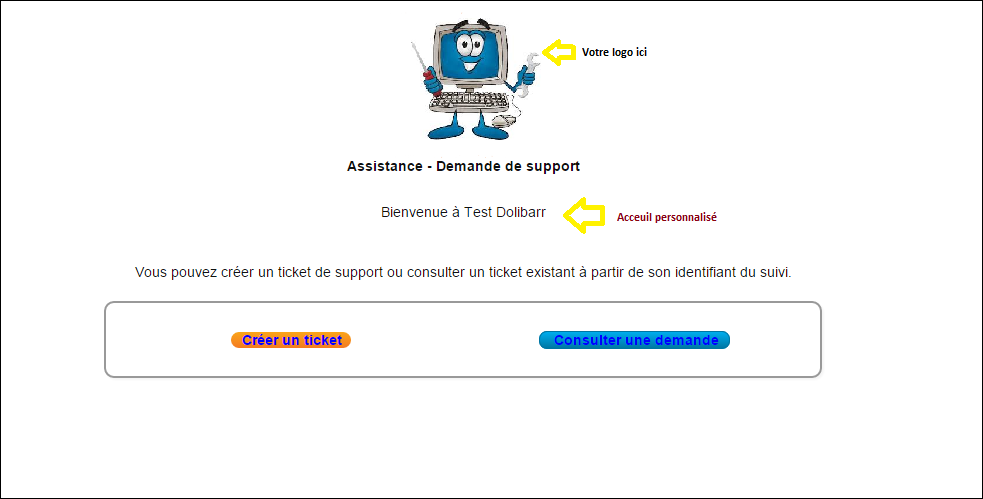
DoliPlus also provides a public web interface to collect customer requests. Be sure to inform your customers about this in advance.
From the “Tickets” tab in the customer record, you can then:
- view the customer’s ticket history;
- create a new ticket;
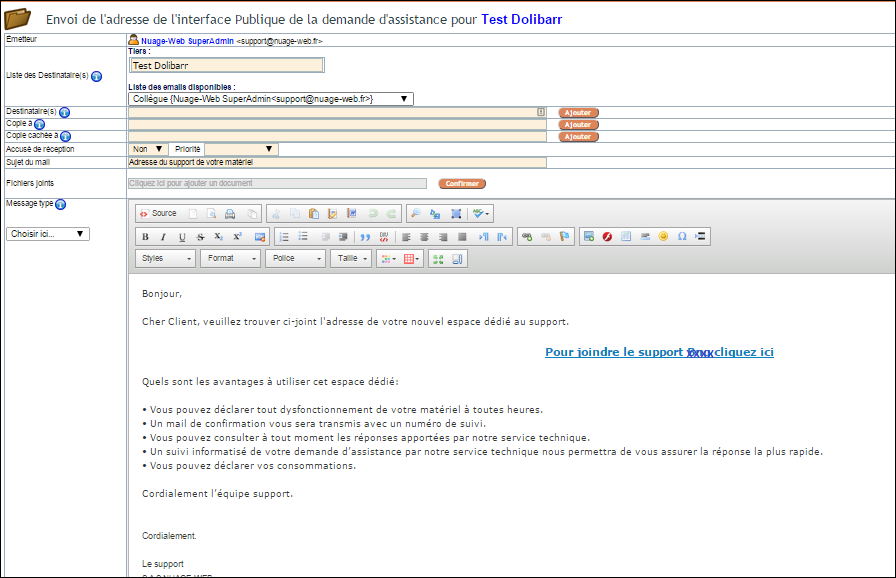
- share a personalised and secure link to the support interface, which automatically recognises the customer.
Note: If you can’t send a personalised link, an anonymous link remains available. In this case, an email address is required. Moreover, if DoliPlus recognises it, the system automatically identifies the customer.
To give a customer the link to their space, open their ticket list (“Tickets” tab of their record) and click “Email support address”. On their page, the customer finds two entries: “Create a support request” (contact, type, category, severity, subject, message) and “List of recent Tickets” or “View a request” (with their “Tracking number” and email address). In a ticket, they can add a message or close it.
Ticket properties
Each ticket contains multiple pieces of information:
- a tracking ID for public consultation;
- subject and description;
- classification (type, category, severity), configurable via dictionaries;
- status and key dates (creation, read, closure);
- author and assigned user;
- associated customer;
- progress and duration, calculated from linked service calls.
Ticket statuses
The ticket follows a clear cycle: Unread → Read → Replied → Assigned → Closed. “Close ticket” appears once the ticket is assigned.
Every action is recorded in the history. You can also add messages, which are saved and displayed on the record.
Link the ticket to your other modules
The ticket is not isolated. You can easily link it to your other activities:
- create a quote directly from the ticket;
- if the Intervention module is active, create a linked service record;
- assign equipment from your inventory, including its service contract;
- finally, create an event attached to the ticket.
These links allow DoliPlus to automatically calculate the ticket duration based on time logged for interventions.
Ticket record and document library
The record displays all information and available actions. A document library is also linked to the ticket, so files uploaded by the customer are automatically stored there.
Messages and history
Add messages to the ticket, displayed newest to oldest like a forum. In addition, the “Send the message by email” box notifies the ticket contact by email, with the tracking link.
A ticket’s “History” tab gathers the calendar events created from this customer’s tickets (not just this ticket), newest to oldest, with their note and author; “Export” outputs the list.
The history tracks key actions: viewing, assignment, status changes and closure.
Handle a ticket, step by step
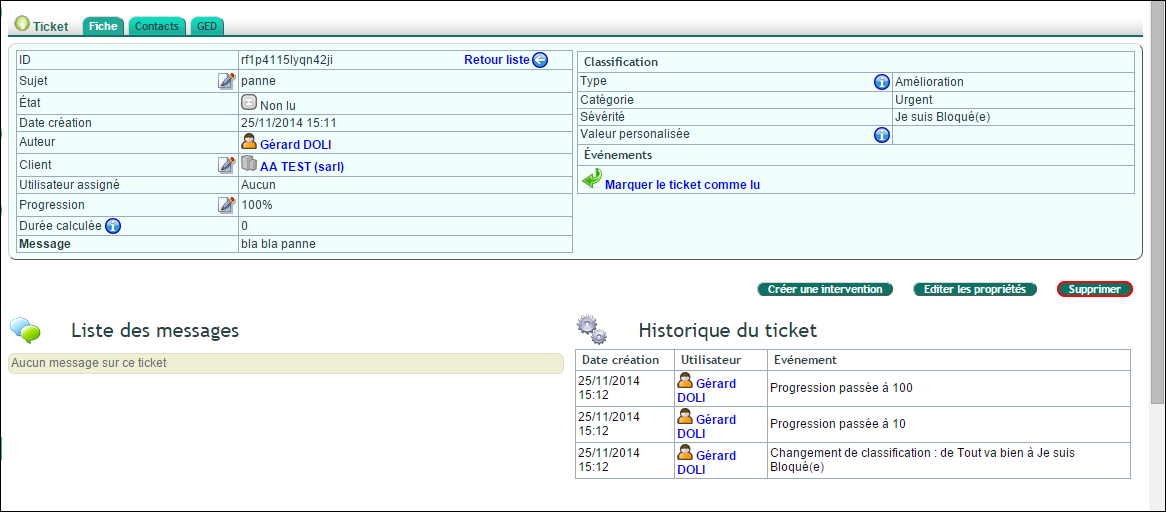
- Ticket › List menu: the most recent requests come first. Click the subject of the ticket to handle: you see the subject, the customer and their message, and on the right the type, category and severity.
- Click “Mark ticket as read”: the read date is recorded and the ticket moves to “Read”.
- Click the pencil next to “Assigned user”, choose the person (yourself by default), then “Validate”: the ticket moves to “Assigned”.
- To reply, click “Add a message”, write your reply and attach a file if needed, then “Add a message”: the reply is added to the ticket thread, which the customer views on their tracking page. With “Send the message by email” ticked, the ticket contact (Contacts tab) receives an email with the tracking link. If the option is configured, “Reply with AI” suggests a draft that you review before inserting it.
- Once the request is handled, click “Close ticket”, then “Yes”. The ticket is closed at 100%.
From the record, “Create event”, “Create a quote” and “Create an intervention” link the follow-up to the ticket.
Qualify emails received by support
If collection from the support mailbox is enabled, the ticket list shows a “To qualify” button: it gathers the emails that DoliPlus could not link to a ticket on its own.
- Click “To qualify”, then “Load pending emails”.
- For each email: the preview shows it; “Create a ticket” opens a pre-filled form (subject, customer, mandatory “Contact following the incident”, type, message) to confirm with “Create the ticket”; “Reattach” adds it to the thread of an existing ticket, based on its tracking number.
- “Delete” removes the email from the mailbox, without confirmation: use it only for irrelevant messages.
List and statistics
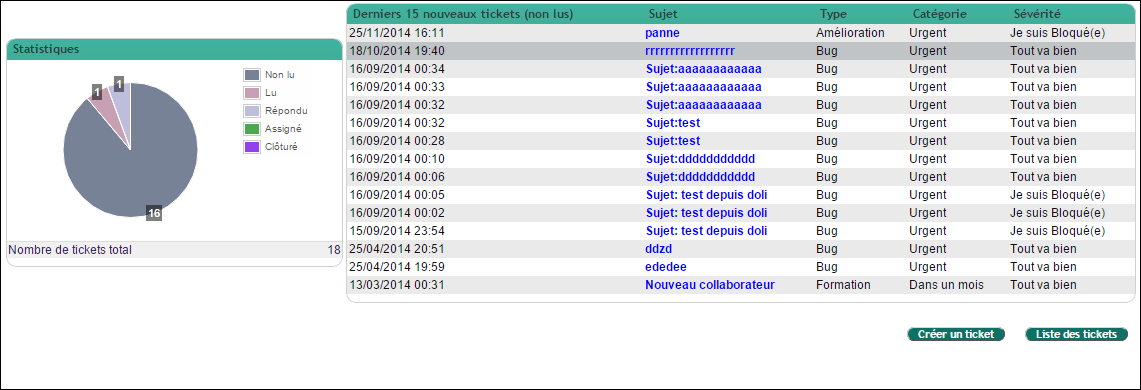
The ticket list can be sorted by status, severity or category. Search by company or subject. The dashboard also shows a chart of tickets by status.
Notifications
When a public ticket is created, DoliPlus emails the customer with a direct link.
With the Notification module, you can designate user groups to be alerted about new tickets or messages.

Configuring the support request module
Settings open from the Ticket › Miscellaneous › Configuration menu, or from Setup › Modules (setup icon on the “Tickets” line).
Email tab
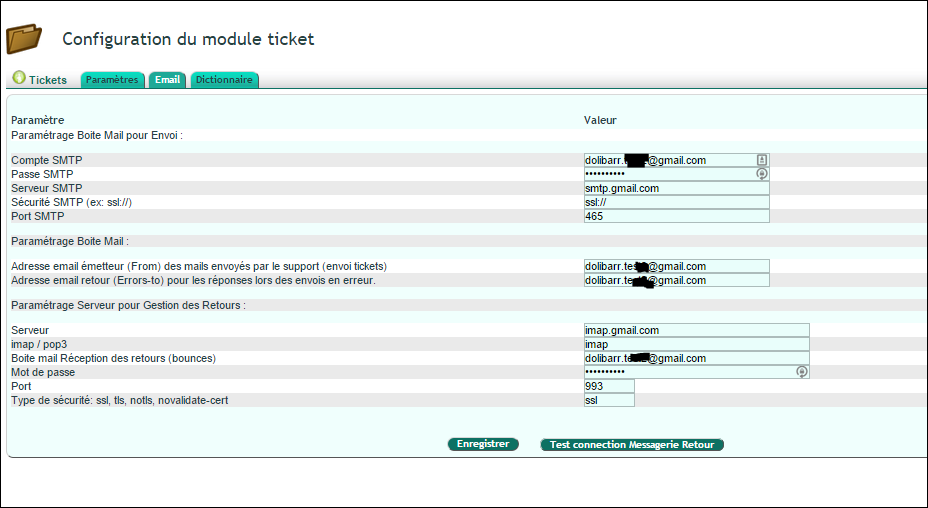
Designate a dedicated mailbox (e.g. support@yourcompany.com) to standardise communications. This uses DoliPlus’ built-in email system with SSL/TLS encryption.
Dictionary tab
First configure the three main lists: type, category and severity.
Custom fields then let you enhance both the internal form and public interface. The IN group applies to internal forms, the OUT group to the public interface. Sharing rules allow some fields to be used in both.
Settings tab
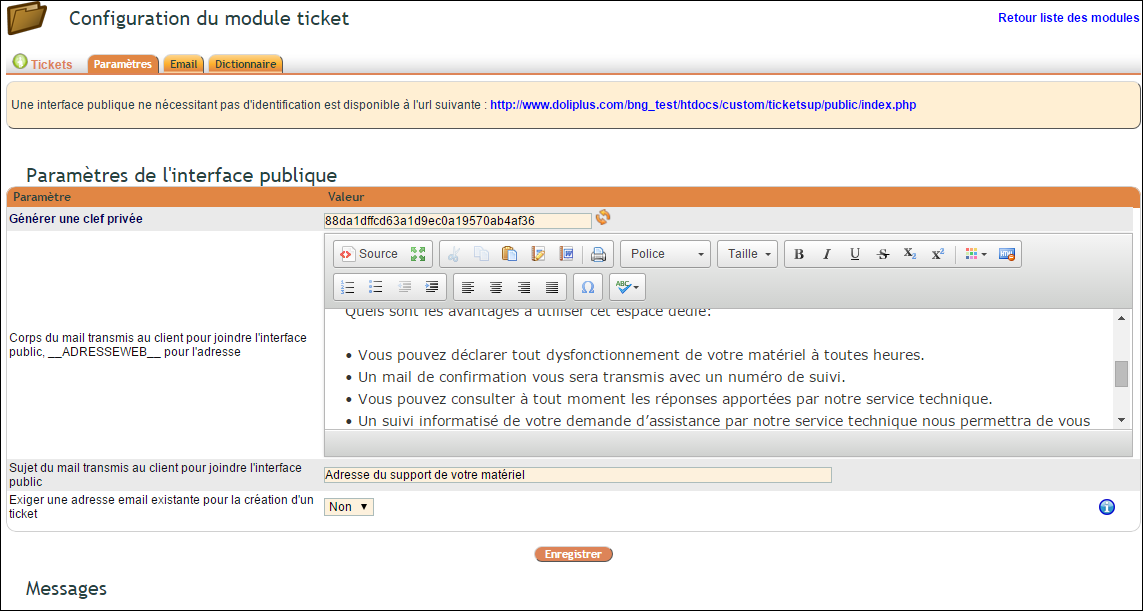
This tab combines multiple settings: client interface links, conversation messages and public interface text. Default template messages are provided and can be customised.
In detail, the “Settings” tab has two blocks, each with its own “Save” button: save one before editing the other.
- “Public interface settings”: the address where your customers open a ticket, the invitation email, the introduction sentence, the subject, “Require an existing email address to create a ticket” (only your known contacts can then write in) and “Show ticket list view in public mode”;
- “Messages”: the “Default action” proposed for an event, the “Assisted response” and its “Drafting instructions”, the “User group to notify” of a new public ticket, and the message texts.
The “Email” tab connects support to its mailbox: sending messages and collecting customer replies. It is set up once, with the DoliPlus team; its test buttons contact your mail server.
Next steps
- How to request support in my Dolibarr + DoliPlus application — how to ask us for help from your application.
- Mobile support requests: report and track issues — report problems from your mobile and track resolutions.
- Browser maintenance — browser maintenance, often the cause before DoliPlus.
