 on 5 September 2026
 Managing Service Requests in DoliPlus
Managing service requests in DoliPlus allows your customers to submit requests, and your teams to turn them into work orders. This way, you track every intervention, from the initial request to its completion on-site.
Moreover, you centralise everything in one place: the request, the appointment, the technician, and the report. This avoids missed calls and forgotten follow-ups.
Why manage service requests in DoliPlus
A repair, maintenance, or installation rarely happens at the right time. That’s why you need a clear channel to receive requests and process them in order.
With service requests, your customers submit their needs online. Then, your teams schedule the appointment, send a confirmation, and carry out the intervention. Finally, the customer can review the history in their account.
For complete management of interventions and equipment, refer to the chapter Managing interventions and equipment.
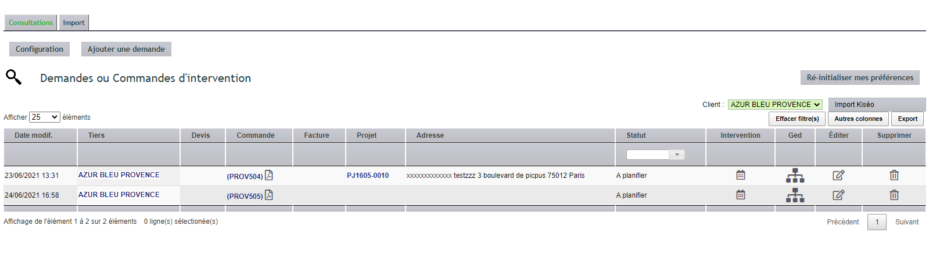
From request to appointment
Each request becomes a schedulable intervention. You assign it a technician, a date, and a location.
Additionally, DoliPlus automatically notifies the customer of their appointment. The message is sent via email or SMS, depending on your configuration.
Appointment confirmation messages
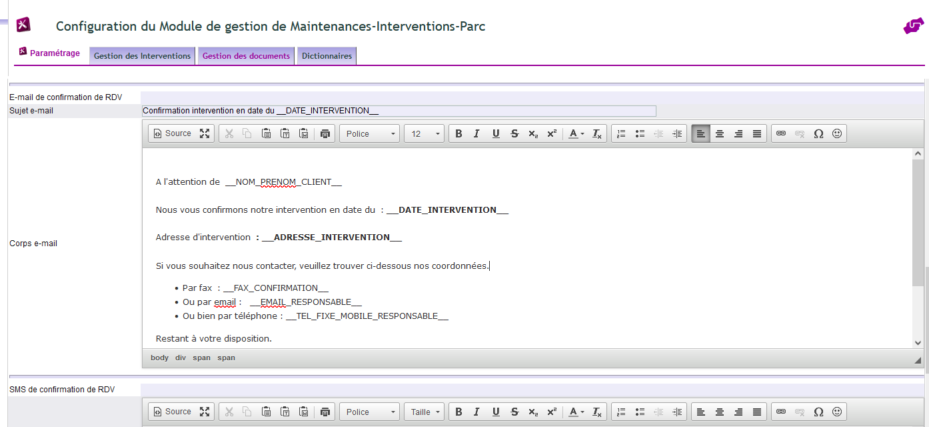
You configure the content of these messages in the Intervention module (Miscellaneous → settings). Two templates are available:
- the email message;
- the SMS message.
Sending is prioritised via SMS when the prepaid account is topped up. However, the number must appear in the “Mobile phone” field to be recognised.
To learn more about notifications, check out the chapter SMS or email alerts for interventions.
Extranet portal for your customers and technicians
The Extranet Portal provides online access for your customers and external contractors. Each party can view operational information without logging into your management software.
Use the module’s specific permissions (profile access…) to precisely define what each profile can see.
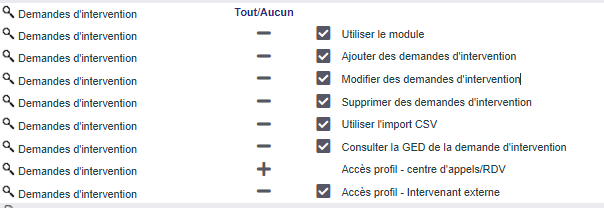
Example setup for an external contractor
Here’s an example of permission settings for a contractor remotely accessing their service jobs.
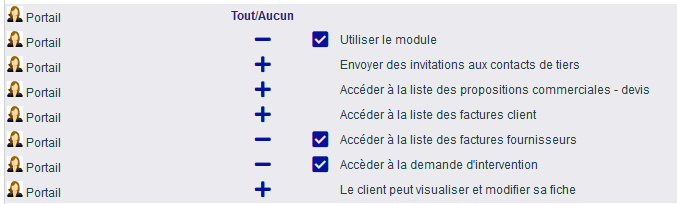
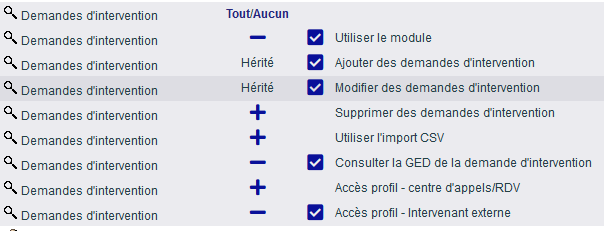
Note: In multi-company setups, the user must belong to a group.
Example setup for a customer
Similarly, here’s an example of permissions for a customer tracking their own service requests.
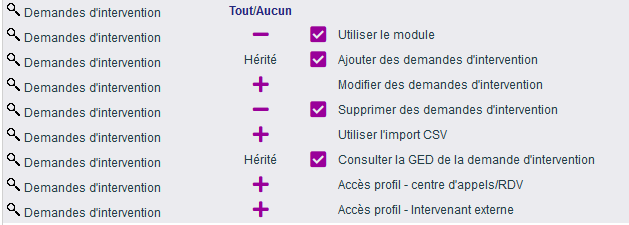
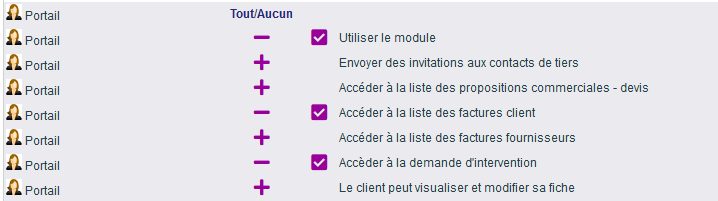
Note: Again, in multi-company configurations, the user must belong to a group.
Configuration and specific settings for the Ordering Client
The “Customer” menu allows you to access data customisation for a customer.
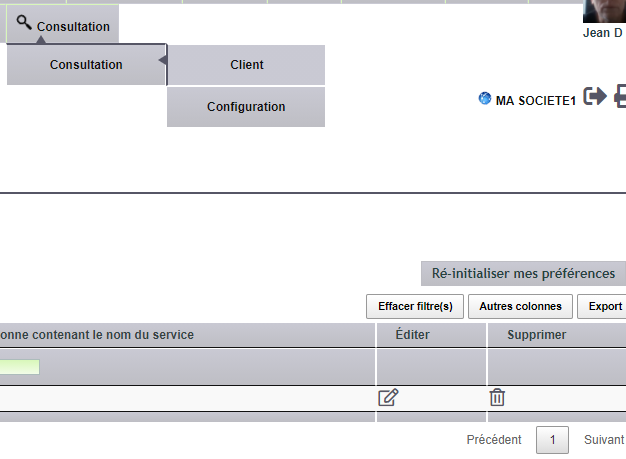
A summary table lists the configured customers.
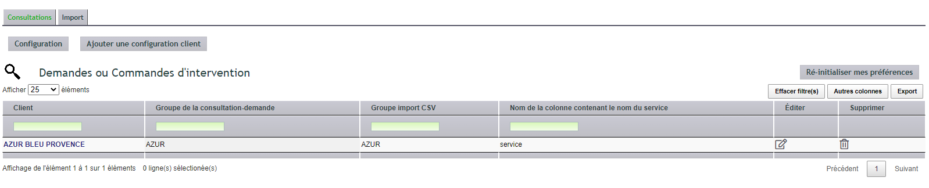
| Note | ||
| Customer | Customer name | |
| Main form group | Allows customisation of the main form which will use attributes from the standard INS group + the one specified here | |
| CSV form group | Gathers CSV form field names under a specific group name for the ordering customer. Attributes are automatically generated when reading the CSV. Labels can be renamed, reordered, displayed or hidden in the form. | |
| Service name column | If a service is associated with the request, it will be detected in this column. | |
| Intervention address template (auto-creation) | Depending on the table (consult_csv or consult) where the data is located:
Example: consult_csv=name:XXXX,firstname:XXXX,address:XXXX,postcode:XXXX,city:XXXX,……
Si besoin de composer l’adresse utiliser & en séparateur , exemple : …….,adresse:street_number&street_name,…… |
|
| Key column name #1 | For CSV pair injection, the column name containing the common key | |
| Key column name #2 | For CSV pair injection, the column name containing the common key | |
| Kiseo token | The Kiséo session key corresponds to the customer (open and close the form to update) | |
| Kiséo Form | Kiséo form ID (open and close the form to update) | |
| Kiséo Document | Kiséo document ID (open and close the form to update) |
Automated service can be set up to collect CSV files every 15 minutes from a client subfolder,
Configuration
Permissions must be configured according to users.
Two tables allow module customisation, accessible to the administrator from the main dashboard in the top left corner.

- The main form: Allows adding request elements for all users via the INS group and specific to the client via a client-specific group name.
- The form linked to potential CSV entries: Gathers CSV form field names via a client-specific group name. Attributes are automatically generated when reading the CSV. Labels can be renamed, reordered, or hidden in the form.
Creating an intervention.
Linked to the intervention module, intervention creation is automated from the order related to the intervention request.
- The order content is included in the intervention.
- The intervention address designates a contact with the intervention address role.
- The intervention date is linked to the intervention scheduling. If further interventions are needed, they must be scheduled directly in the intervention.
A link in the dashboard provides a preview with its status.
Sending email messages
From the summary table, click on the icon.
A link provides access to templates.
Substitution variables allow customisation of the Message and its Subject.
Variables enclosed in double underscores + example:
__NAME__ = AZUR BLEU PROVENCE
__ORDER_REF__ = (PROV543)
__INVOICE_NUMBER__ = null
__PROJECT_REF__ = null
__INTERVENTION_REF__ = FI2107-0041
__DATE__ = 29/06/2021 12 = 00
__INTERVENTION_REF__ = FI2107-0041
__CONTACT__ = Cléo GRAND
__ADDRESS__ = AR Construction 33 RUE DU BEAL 38400 ST MARTIN D HERES
+ All custom fields in the format
__UPPERCASE_ATTRIBUTE_CODE__ = xxxx
Kiséo Forms
The Kiséo service connects your field forms to DoliPlus. In practice, it pre-fills a form, retrieves the entered data, and imports the PDFs. It therefore offers three access points:
- a write access, to pre-fill a form;
- a read access, to retrieve the entered data;
- PDF retrieval.
Each Kiséo form relies on three linking fields, to be filled in the configuration:
| Kiséo ID | Kiséo document identifier (open and close the form to update it). |
| Kiséo URL | Kiséo form URL (open and close the form to update it). |
| Kiséo Doc URL | URL of the generated Kiséo document (open and close the form to update it). |
Several tools complement this integration:
- the user list (see the DoliPlus user record);
- the form list (see customer settings);
- the document template list (see customer settings). First save the form, then edit it to select the document to attach;
- an automatic collection service for completed forms, every 15 minutes;
- a detailed import log, filed in the request document library.
Similarly, you can set up automatic collection of CSV files deposited in a customer subfolder, every 15 minutes.

Intervention Address
Intervention addresses are recorded in Contacts/Addresses linked to the ordering customer or supplier and are tagged as “site” to distinguish them from physical or billing contacts.
Address entry assistance is available for France with address geolocation. Clicking on the address displayed in a column will open Google Maps.
Invoicing
The end customer can be invoiced either per job or via a monthly statement attached to an end-of-month invoice.
Services
Services corresponding to interventions are defined as usual, with intervention times calibrated by specifying duration in hours and quantity in fractions of an hour. The price serves as the basis for automatic invoicing.
Going further
Do your field staff work on the move? Track your intervention requests from mobile:
