 on 7 July 2026
 Inventory management software: real-time stock control
Inventory management software that follows every movement, live
Your DoliPlus solution includes inventory management software that tracks the state and the movements of every product, across as many warehouses as you need:
- stock kept up to date permanently, warehouse by warehouse;
- simple manual corrections, from the product record or through a dedicated movement;
- new: the warehouse stays selected from one adjustment to the next, with no re-entry;
- storage locations, batch or serial numbers and expiry dates;
- the weighted average cost, calculated per warehouse and overall, and correctable in one click;
- transfers between warehouses, traced in the movement list;
- an alert threshold per product, so you act before running out;
- your stock and its value on any past date.
As a result, small and mid-sized companies steer their material flows simply — without a parallel spreadsheet and without a month-end recount. DoliPlus is the enhanced cloud edition of Dolibarr, the open-source ERP & CRM used across Europe.
Setting up your inventory management software
To begin, switch the Stock module on from Home → Setup → Modules.
An icon then appears at the end of the line. Click it to open the settings, where you choose in particular how stock is incremented and decremented.
Besides, further settings live in the PDF/Interface parameters. Finally, the StockPlus module adds advanced functions.
What it actually covers
The module follows the state and the movements of every product defined in the Products module. Moreover, you extend it across several warehouses.
Your stock may gather many kinds of items: raw materials, components, finished goods, packaging, spare parts. To organise them, you use product categories. Sales and purchase units are built into stock handling too.
In practice, the whole cycle is covered:
- goods receipts;
- order picking and shipments;
- items, batches and bills of materials;
- stocktaking;
- statistical exports;
- barcodes and labels;
- carrier tracking numbers.
Create a warehouse
Creating a warehouse is the first compulsory step. Go to Products/Services → left menu Stock → New warehouse.
Only a code and a name are required. You then state whether the warehouse is open or closed. Indeed, a closed warehouse stays invisible to the other tools: handy while you prepare it, or while you block it during a stocktake.
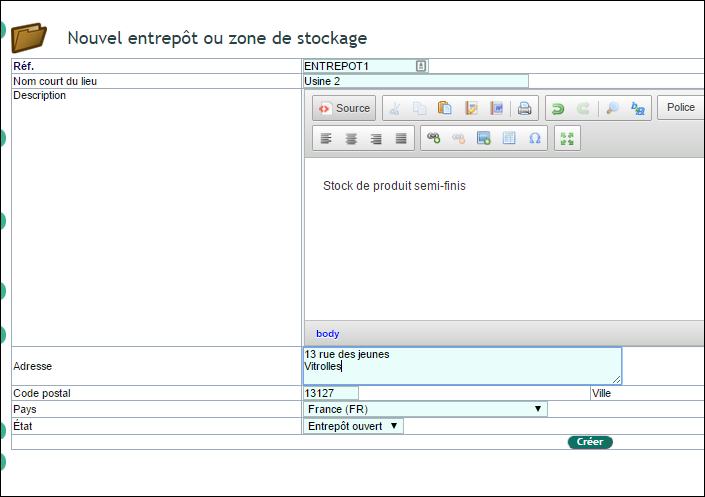
You create as many warehouses as you need. That flexibility also covers less common cases:
- mobile stock, such as service vans;
- stock held remotely at a supplier site.
Paired with the Products module, you then get entry and exit tracking, storage locations, movement history, stocktaking and classification by family.
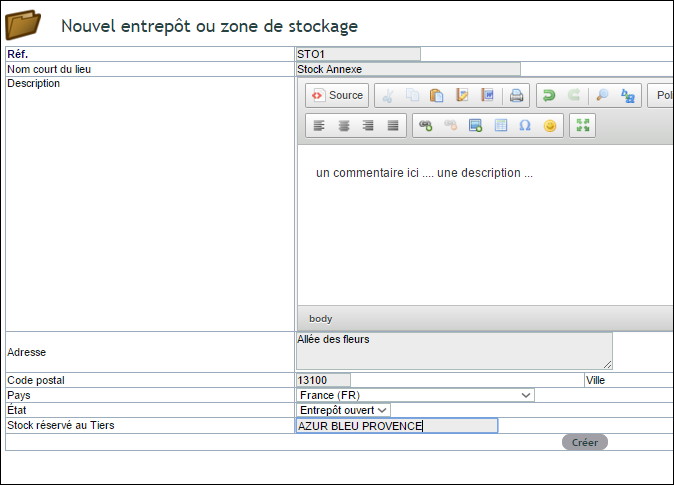
Dedicate a warehouse to one company
The “Stock reserved for company” field dedicates a stock to one customer or one supplier.
For example, your supplier builds sub-assemblies and delivers them gradually: you therefore count what is left to deliver at a glance. Conversely, you manufacture ahead for a customer: you track what remains to be delivered, and every related movement, in the same way.
Set up replenishment
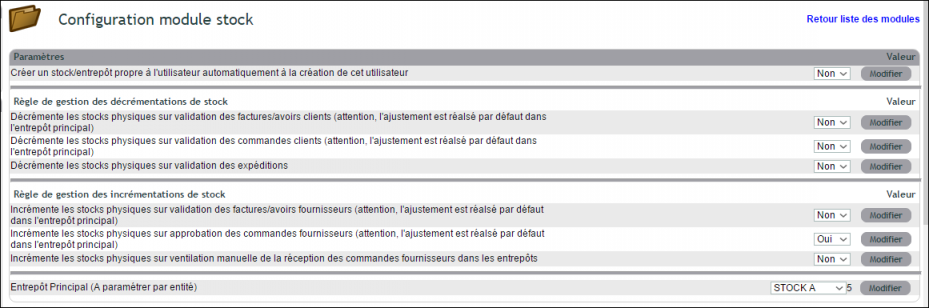
Directly tied to purchase orders, replenishment can be configured in several ways. Go to the module settings and pick the mode that fits.
Depending on the option chosen, the stock movement therefore fires on the order, on the delivery or on the invoice.
Correct stock by hand
From the product record
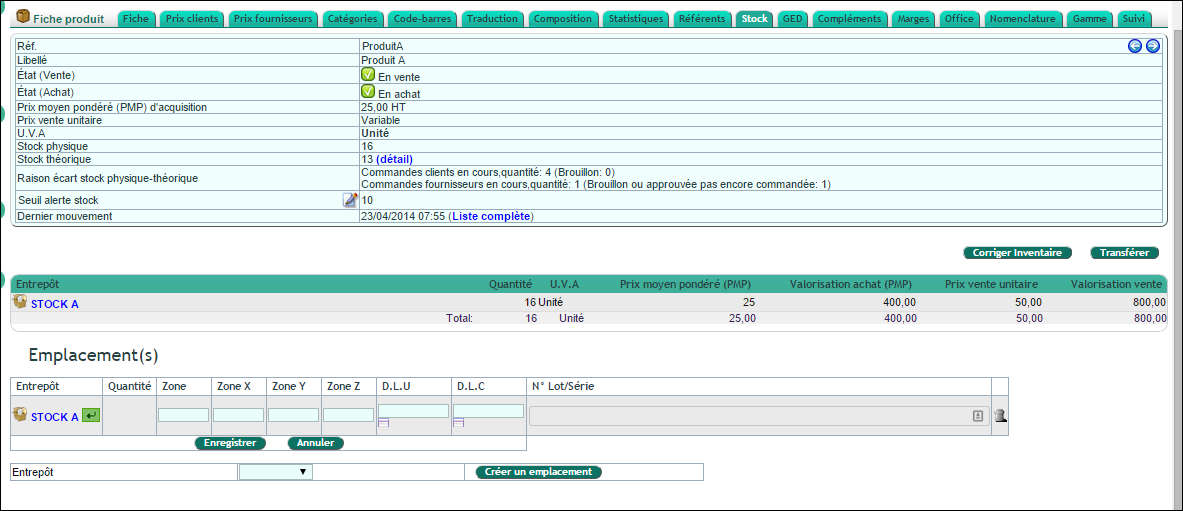
The Stock tab of a product record sets the stock value in each warehouse. You make your corrections there in the same way.
Through a stock movement
A dedicated screen also lets you record an exit outside any order or shipment.
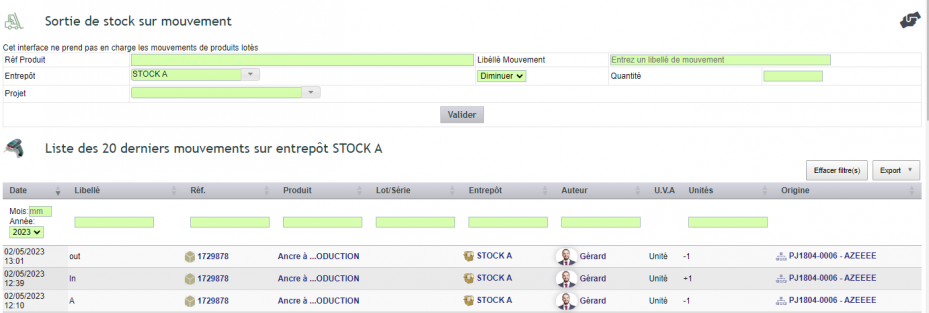
Moreover, if you name a project, the referring tab values the consumed stock in the financial summary.

Chain your adjustments without re-entering the warehouse
Adjusting stock is rarely a single line: you often correct ten references in a row on the same site.
The warehouse you picked now stays selected after each validation. You therefore enter the next reference and its quantity, then validate. Nothing else to touch.
Besides, the available stock shows directly opposite each warehouse, and it refreshes as soon as you choose a product. Before validating, you therefore see what the site really holds.
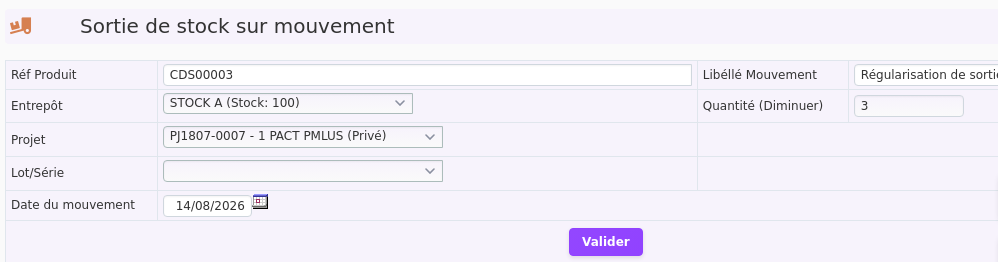
Finally, the project is cleared after each movement, visibly on screen. Indeed, a line must never attach itself by accident to the previous job: if you want the next one on the same project, you deliberately select it again.
In other words, what the screen shows is exactly what will be recorded.
Transfer between warehouses and keep the trail
Move goods between sites and keep the trail: the transfer starts from the Stock tab of the product record.
Click the “Transfer” button. The “Stock transfer” form then opens:
- “Source warehouse”: the site the goods leave;
- “Target warehouse”: the site that receives them;
- “Label”: prefilled with “Inter-stock transfer”, which you may refine;
- “Quantity”: the number of units moved.
Then click “Save”. DoliPlus creates two linked movements: an exit from the source and an entry into the target. The transfer therefore shows up in the movement list, with its date, its label and its author.
For an item tracked by batch, the “Transfer stock” link sits on each batch line. The batch moved therefore keeps its number and its dates.
Work out your safety stock
Select your products, usually through the ABC method (the 80/20 rule). You therefore keep the class A references, by value or by turnover. That information is then recorded on the product sheet.
Alert threshold and optimal stock: get warned before you run out
Once your safety stock is set, record it on the Stock tab of the product record. Two fields can be edited there directly:
- “Stock alert threshold”: the level below which the item must be reordered;
- “Optimal stock”: the quantity you want on the shelf.
As soon as the physical stock drops below the threshold, an “Insufficient stock” warning icon appears next to the quantity. The same signal shows on the theoretical stock, which takes open orders into account.
Better still, the low-stock list gathers every item concerned. To open it, use the left menu Products → Stocks: it is the “List of products with insufficient stock (physical stock/alert threshold)”. Moreover, a radio button compares the physical stock with the optimal stock instead.
Note that only products with a threshold, or an optimal stock, above zero appear in this list.
Barcodes and stocktaking
To go further, see barcode handling and stocktaking.
Storage locations on 4 axes
This function is switched on in the Stock + module configuration, option “Enable location management for stock”. However, it cannot be active at the same time as batch management V2.

Specific to DoliPlus, this location handling adds 4 axes to pinpoint your products. One axis can stand for a sub-zone, the other three for the X, Y and Z coordinates.
Two further possibilities come with those axes:
- record the batch or serial numbers present at the location;
- note the use-by date and the best-before date.
Once the option is active, the location appears during receipts and shipments.
Create, move and delete a location
Find every item at its exact location. Indeed, everything is handled from the Stock tab of the product record, in the locations block below the warehouse table:
- create: pick a warehouse at the bottom of the block, then click “Create a location”. Moreover, the “Add a Location” icon next to a warehouse name adds a line in that same warehouse;
- fill in: enter the zone, the X, Y and Z axes, the dates and the batch numbers, then click “Save”;
- move: on a stocked location, the “Move to another location (same stock)” icon opens a window where you choose the destination and the quantity;
- delete: the bin icon appears as soon as a location is empty, and one click is then enough.
Note that this move stays inside the same warehouse. It therefore creates no stock movement, as the window reminds you.
Attach batch or serial numbers
You enter batch or serial numbers on each location. That brings two advantages:
- on shipping, the numbers entered are decremented from the location automatically;
- they are attached to the order line, then to the invoice line.
Consequently, you find the sold items and their numbers again in a list view. Failing that, manual entry stays possible when editing a line.
Batch-tracked products: put quantities straight
With batch management V2 (option “Enable batch management V2” of the Stock + module), the Stock tab of a batch-tracked item shows the “Recalculate batch stock” button. It appears for users allowed to create or delete stock.
This button opens a batch correction window. First, it flags duplicates, that is several lines for the same batch, and offers to merge them. Then you tick the batches to delete or to recalculate, and you validate.
Besides, for items sold by the kilo, a second button appears: “Reset stock between -0.1 and 0.1”. It clears the tiny leftovers that successive weighings leave behind.
Goods receipts
Receiving is reached from the purchase order, at the “validated” and “awaiting receipt” statuses.
Receive
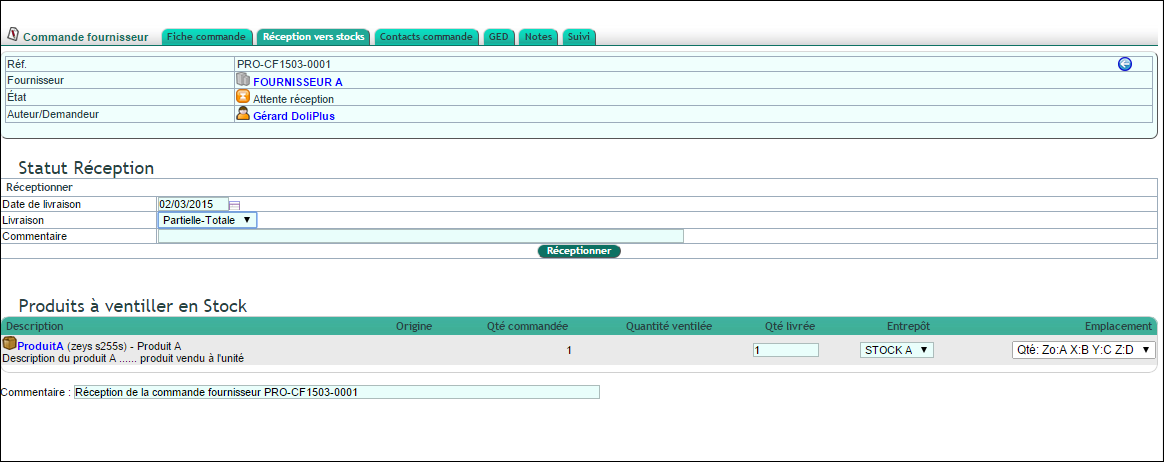
In the order, select the “Receive into stock” tab, then the delivery type (full, partial, never received or cancelled).
Spread the goods across your stock
The screen then offers to spread the remaining products across your warehouses. If location handling is active, you also pick a location.
On validation, stock levels increase and the order status adjusts itself.
Receiving products tracked by batch
When a product is tracked by batch or serial number, every receipt line expects its batch number, its use-by date and its quantity. You either type them in, or let them fill themselves as you scan a barcode label: the item, the use-by date and the weight are then picked up automatically, line after line.
On validation, the screen checks that every quantity entered carries its batch number. If one is missing, it points the line out and highlights the field concerned: your entry stays in place, scanned labels included, while you complete it. And if only part of the order has arrived, simply set the quantity of the later lines to zero.
Shipping goods out
Ship
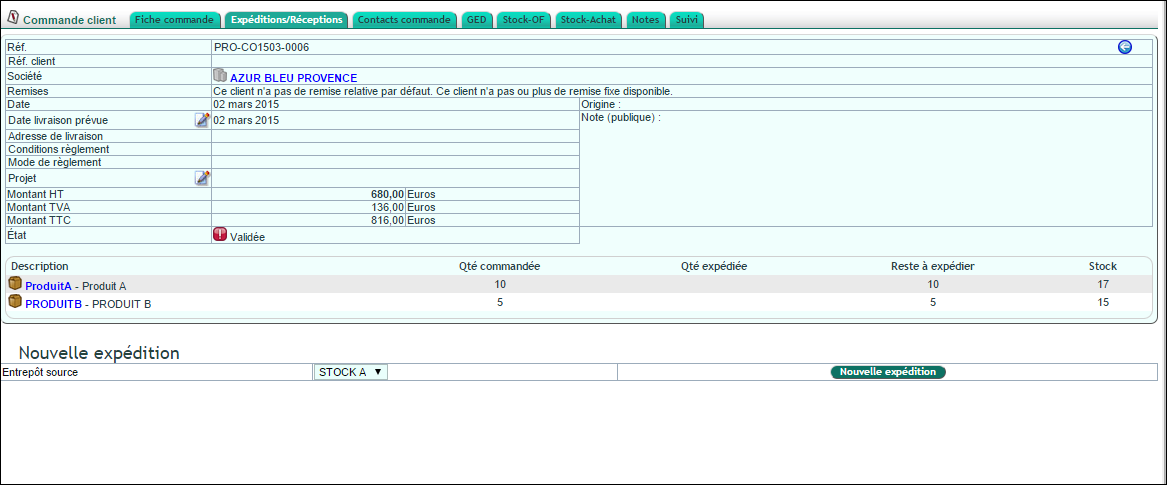
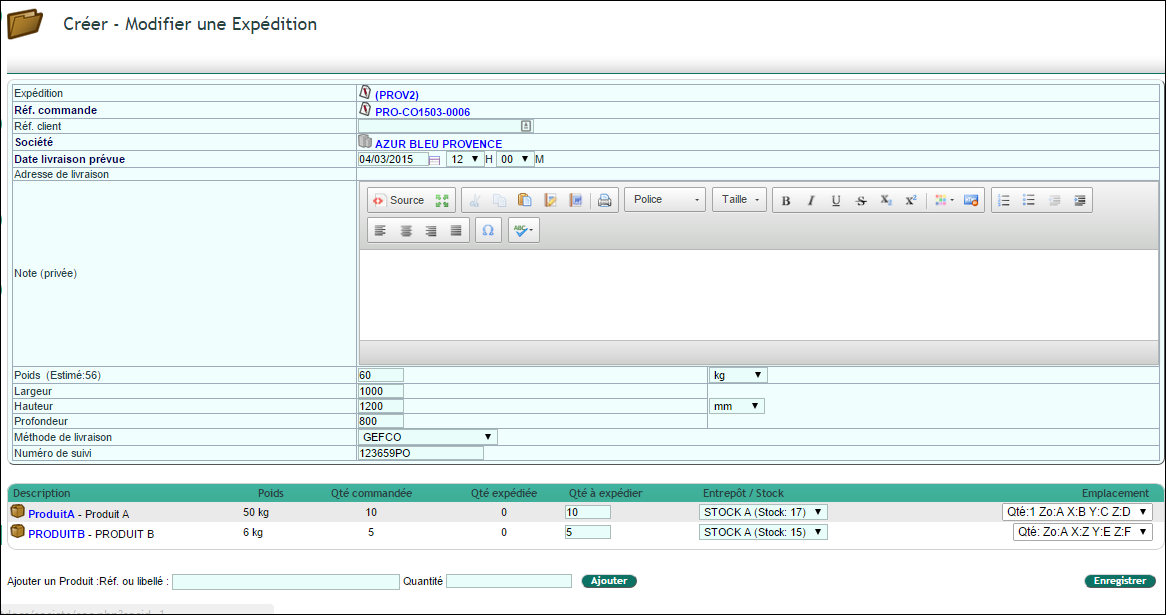
From a “validated” sales order, open the “Receipts/Shipments” tab, choose a warehouse, then click “New shipment”.
That tab also handles your own transport and the receipt at your customer site, with printed notes. In the upper part, you fill in the packing, the carrier, the tracking number and the date.
Note that you may add an attached item, not invoiced, to the shipment. Stock is then decremented without invoicing — handy for enclosing a catalogue, or for managing a pallet stock.
Carriers and tracking
This information is carried over to the shipping documents. Moreover, for some carriers a URL points straight to the online tracking page.
Batch numbers and automatic decrement
You attach serial numbers to the shipment by hand. That information then reaches the invoice line and the shipment PDF.
You can also automate the decrement through location handling. To do so, first fill the batch number area on the location. On shipping, those numbers decrement automatically, then attach themselves to the order and the invoice.
Documents and list view
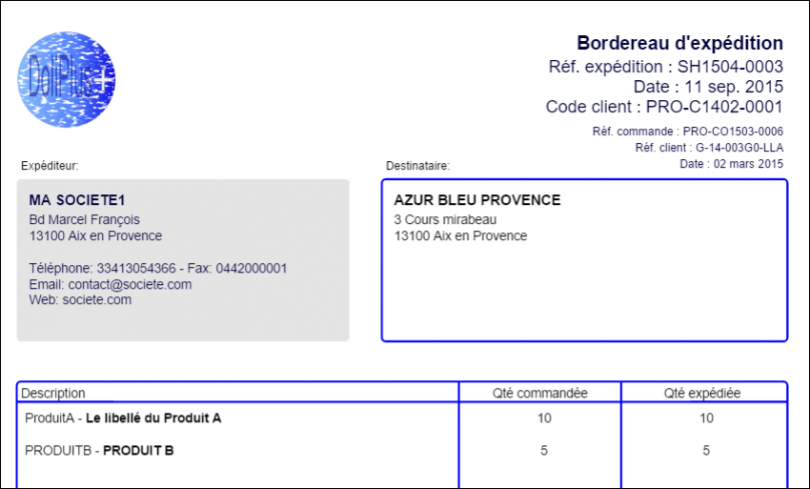
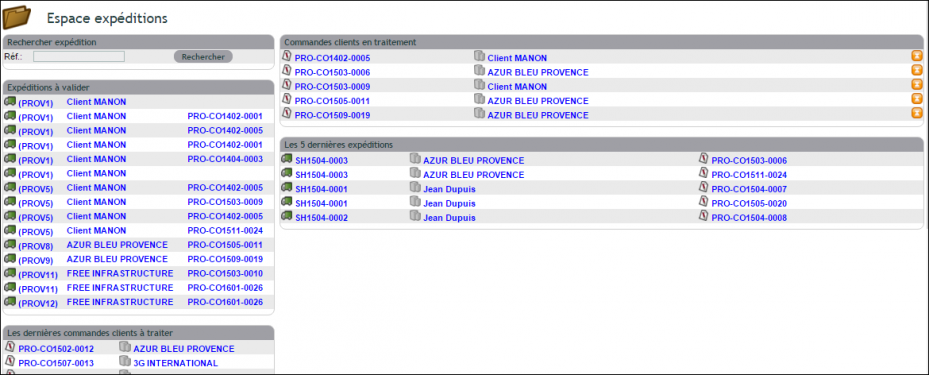
Finally, a list view of shipments, reached from the Products/Services menu, offers a multi-criteria search.
Stock visible on quotes and orders
In DoliPlus, dedicated tabs show the stock of your active warehouses. Better still, on a sales order you create a purchase order straight from the product line, knowing the available stock.
The weighted average cost
How is it calculated?
The weighted average cost is the average of the unit costs of stock entries, opening stock included. As a rule, the unit cost is the purchase price. Note that exits do not affect it.
Entries are a purchase receipt, a sales return, an incoming transfer, a direct entry or a correction. Conversely, exits are a sales shipment, a purchase return, an outgoing transfer, a direct exit or a correction.
The method stays simple and easy to apply. However, it gives every item the same value and proves less reliable when prices swing hard. In DoliPlus, it is calculated per warehouse and overall.
Refresh the average cost
When needed, you launch a refresh from the item list of the warehouse.
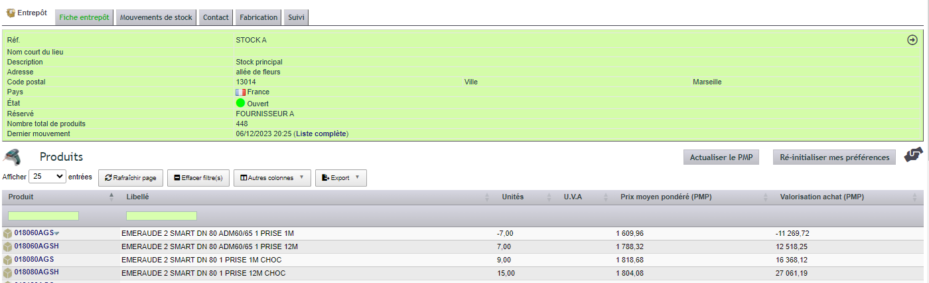
Click “Refresh WAPs”, then confirm. DoliPlus then recalculates the average cost of every item in the warehouse from the prices on your supplier invoices. Keep the browser open while it runs.
Correct the average cost of one item
Start again from a fair cost after a typing error. Indeed, a mistyped purchase price skews the average cost, and therefore the value of your whole stock.
In that case, open the Stock tab of the product record, then click “Refresh WAP”. A window then asks for the “New WAP”. Enter a value above zero and confirm: DoliPlus applies it at once to the product record and to every warehouse holding the product.
This button is active for users who hold all three rights: create stock, delete stock and create movements. For everyone else, it stays greyed out.
To go further, see the definition of inventory on Wikipedia.
Movements, stock on a date and valuation: your inventory management software in figures
The stock movement list
Every entry, exit, correction or transfer leaves a trail. To view it, open the left menu Stocks → Movements. The “Stock movement list” then shows the date, label, product, batch, warehouse, author, quantity and origin of each movement.
From a product record, the “Full list” link next to “Last movement” opens that item’s history directly. Likewise, each warehouse record has its own movements tab.
Stock on a past date
Know your stock and its value on any date. To do so, open the menu Stocks → Stock as of date, pick a date, then click “Validate”.
DoliPlus then rebuilds, from the movements, the quantity held in each warehouse on that day. For each item, the table shows today’s “Actual stock”, the “Stock as of date” and the “Value as of date”. You can also filter by product or supplier category. Finally, with batch management, the “With batch details” button breaks down each batch.
Note that the value on a date uses the item’s current average cost, not the one of the chosen day.
Warehouse valuation
Put a figure on each warehouse for the balance sheet. The menu Stocks → Valuation opens the “Stock valuation” page, which shows two amounts per warehouse:
- “Valuation at purchase (WAC)”: the quantities in stock multiplied by each item’s average cost;
- “Valuation at sale”: the same quantities at the selling price.
Finally, a total line adds up all your warehouses. You therefore see at a glance the value to carry into your accounts.
Further reading
- Stock projection: know when a product will run out
- Running a stocktake
- Recording movements from the field with DoliPlusMobi
Related Entrées
