 on 5 September 2026
 Multilingual product catalogue: your records translated in one click
A multilingual product catalogue was the missing link in DoliPlus.
Your team already works in their preferred language, and your customers receive documents in theirs.
Now, your product descriptions follow suit:
- an AI Translate button fills the label, description and notes in the chosen language;
- you review, amend if needed, then save: nothing is sent without your approval;
- an outdated translation can be deleted with one click;
- your quotes, orders and invoices automatically pull these texts.
In short, a German client receives their quote in German — without anyone opening an online translator or copy-pasting a single line.
Who decides the language of a quote?
One question keeps coming up: “Which language will this quote be in?” The answer doesn’t depend on your screen language. It hinges on just two settings.
- Your screen language doesn’t matter. Each team member chooses theirs in their record, and this doesn’t affect outgoing documents. Set each employee’s language
- The customer record sets the document language. Its Default language field determines the language of their quotes, orders and invoices. This is the first setting to configure.
- The catalogue provides line item texts. That’s what this article covers: translated product names and descriptions, entered once then reused in every document.
This second link was precisely what was missing. As a result, a German quote would show product names still in French — a half-translated, half-convincing document.
How a multilingual product catalogue transforms your export communications
A quote written in your customer’s language is read faster, understood better, and therefore signed more often. Conversely, a document where descriptions remain in French forces the client to guess what they’re buying.
The barrier to a multilingual product catalogue was never technical: it was human. Manually translating two hundred references takes days of data entry, and no one can find them. As a result, the feature existed but was never used.
This is exactly what AI-powered assistance unlocks: translating a record drops from several minutes to just seconds.
Translate a product record with one click
Open a product or service record, then go to the Translation tab. Next, click Add.
DoliPlus first displays the original text as a reminder – showing the record exactly as you wrote it. This keeps the reference visible at all times.
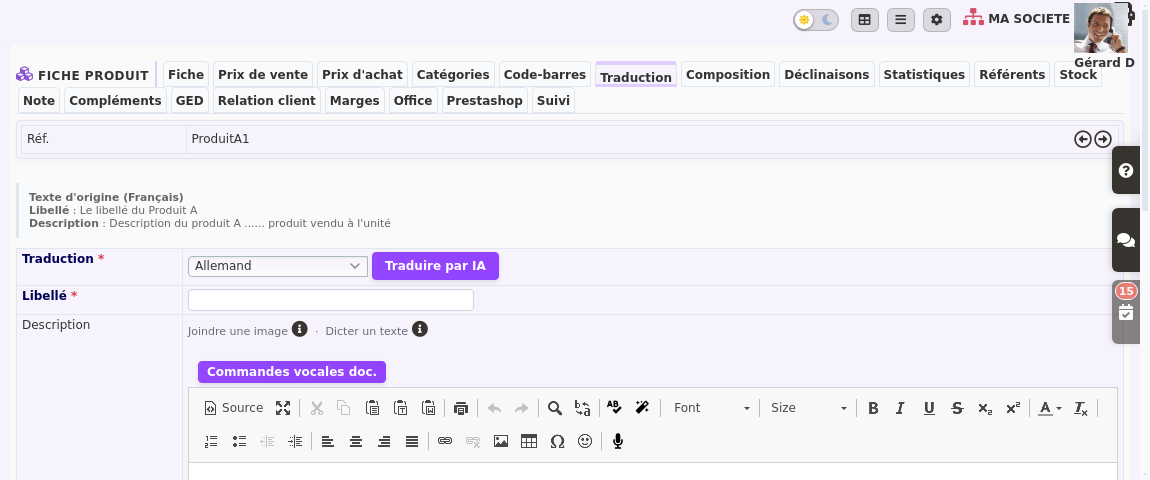
Finally, select your target language and click Translate with AI. Within seconds, all three fields populate: the label, description, and notes.
You remain in full control throughout
The AI never decides for you. It simply pre-fills the form: until you click Save, nothing is written to your database.
You can adjust industry terminology, correct measurement units, or rephrase commercial text. Plus, DoliPlus preserves formatting: bold text, lists and line breaks remain intact.
Edit or delete outdated translations
The Translation tab lists all languages already entered for the item. Each is instantly identifiable by its flag icon.
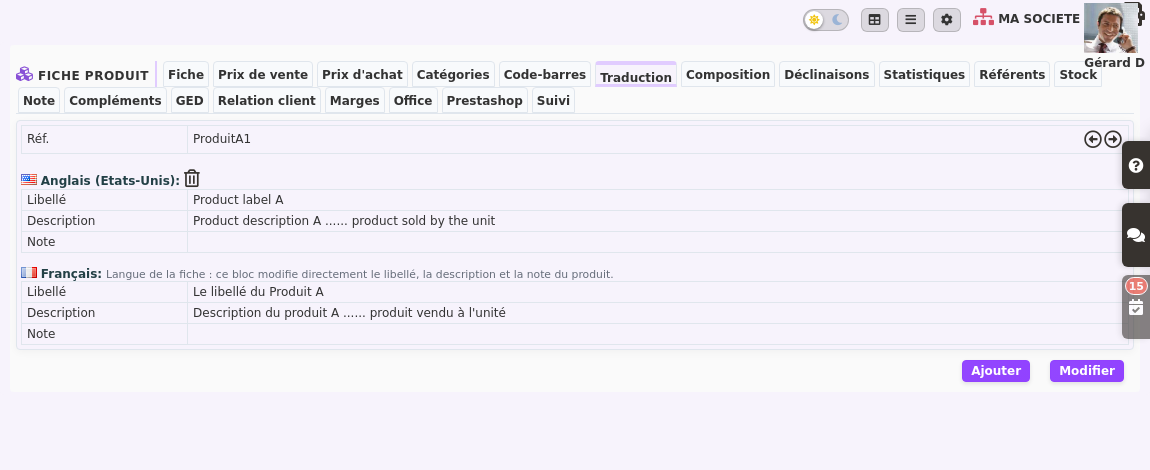
The Edit button opens all languages on a single screen, with the original text displayed above each block. Each language also has its own translation button, handy when a description changes and needs updating.
Finally, the small bin icon next to a language deletes that translation. This is a long-awaited feature. Until now, an incorrect translation remained attached to the item and was sent to your customers.
DoliPlus indicates the record’s language
A block displays “Record language”. Note: this isn’t a translation, but the product’s main label. Editing this block modifies the record itself.
Where do these texts actually appear?
A multilingual product catalogue is pointless if it sits unused in your database. In DoliPlus, these texts appear in two key places.
First, specify your customer’s language
DoliPlus doesn’t guess a recipient’s language. You set it once in the customer record under Default language. Afterwards, every quote, order or invoice for this customer automatically uses that language.
If this field is left empty, documents simply follow your company’s language. View customer and contacts record
- Your commercial documents. When a quote uses your customer’s language, DoliPlus replaces each line’s designation and description with their translated versions.
- Your online shop. The PrestaShop connector pushes these same translations to your shop’s product records.
In short, one entry feeds both your documents and your e-commerce site. Discover the PrestaShop connector
What you need to use it
Just two requirements unlock the multilingual product catalogue. First, your instance must enable the multilingual option for the Translation tab to appear on records. Second, AI support makes the button visible.
Without AI, the tab remains fully functional. You then enter translations manually, with the original text visible. Discover DoliPlus AI package
What’s the resource usage?
Very little. A product record consists of just a few lines of text, and DoliPlus remembers every translation already requested. Therefore, re-translating identical text costs nothing extra.
By the way: language names now in French
A display issue has also been fixed. Language names appeared in English throughout the interface. You would see “French” instead of “Français”, or “German” instead of “Allemand”. DoliPlus now displays them correctly everywhere.
Going further
- The product and service catalogue in DoliPlus
- Letting each employee work in their own language
- Customers and contacts: where to set a client’s language
- Customising your ERP’s vocabulary — renaming DoliPlus terms, not to be confused with translating
- The PrestaShop connector for your store
- The DoliPlus AI package
