 on 5 September 2026
 User access rights in DoliPlus: who sees what, who does what
With DoliPlus, you can finely adjust user access rights: each person only sees what concerns them. Specifically, permission management gives you:
- settings per person or per group, permission by permission;
- “All / None” links to tick an entire module in one click;
- default permissions, automatically applied to each new user and new group;
- a button to deploy these settings in bulk across all existing accounts;
- an instant search field that stays active throughout your adjustments.
Result: confidentiality is maintained, screens stay simple, and setup takes minutes instead of an afternoon.
Why set user access rights?
In a business, not everyone needs to see everything. For example, margins, salaries, or invoices often belong to a restricted circle.
Moreover, a clean interface reduces errors: an employee who only sees their menus works faster and won’t accidentally modify data. Thus, user access rights serve both confidentiality and workflow comfort.
One permission = one instruction: read the label carefully
This is the key point to remember. Ticking a permission activates the instruction written on its line; unticking it deactivates that instruction. Some instructions grant an action, while others restrict it.
A few practical examples:
- “View customer invoices”: when ticked, it grants access to invoices;
- “Block access to support”: when ticked, it removes a possibility—the support call button disappears from the user’s screen;
- “Prohibit viewing margins”: when ticked, margins become invisible to that person.
Set rights per person or per group
Each user record has a “Permissions” tab: you tick or untick each instruction for that person. However, adjusting ten accounts one by one quickly becomes tedious.
That’s why DoliPlus offers groups: set up permissions just once for the “Sales” or “Technicians” group, then assign your team members to them. Each member inherits their group’s permissions, and the user record shows this inheritance with the “Inherited” label.
Three handy tools speed up the process:
- the “All / None” links tick or untick all permissions in a module with one click;
- the search field instantly filters the list (by module or label text), keeping your filter active while you click;
- every click saves immediately without page reload: adjust settings continuously without waiting.
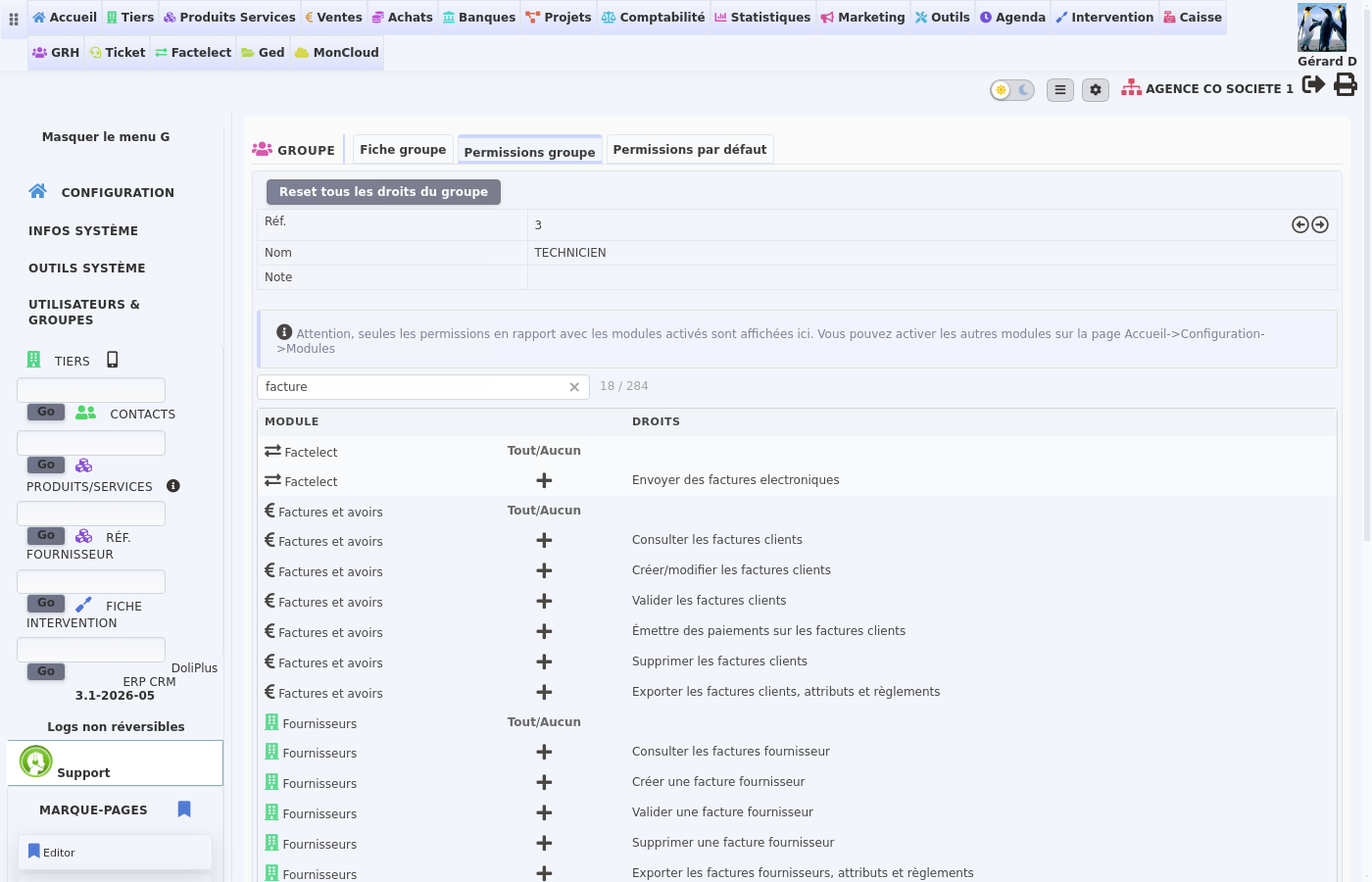
Does an action seem impossible? Two causes can then be told apart at a glance:
- the button does not appear at all: most often, a permission is missing. For example, without “Cancel customer orders”, neither “Cancel” nor “Reopen” appears on an order;
- the button is greyed out: hover over it, because its tooltip gives the reason. It is often a step to complete first, not a right. For instance, “Mark as ’Paid’” stays greyed out on an expense report until it has been posted as a supplier invoice. See the expense report
To check user access rights, open the person’s record, “Permissions” tab, then type the module name in the search field. A permission marked “Inherited” comes from their group: so set it on the group.
Default permissions and bulk deployment
New team member? Default permissions ensure their account is properly configured from the start. Set up instructions for new users once, and the same page now exists for new groups too.
For existing accounts? The “Apply to all users” button (or “Apply to all groups”) pushes these default permissions to every existing account. Rest assured: this only adds permissions — existing settings remain untouched.
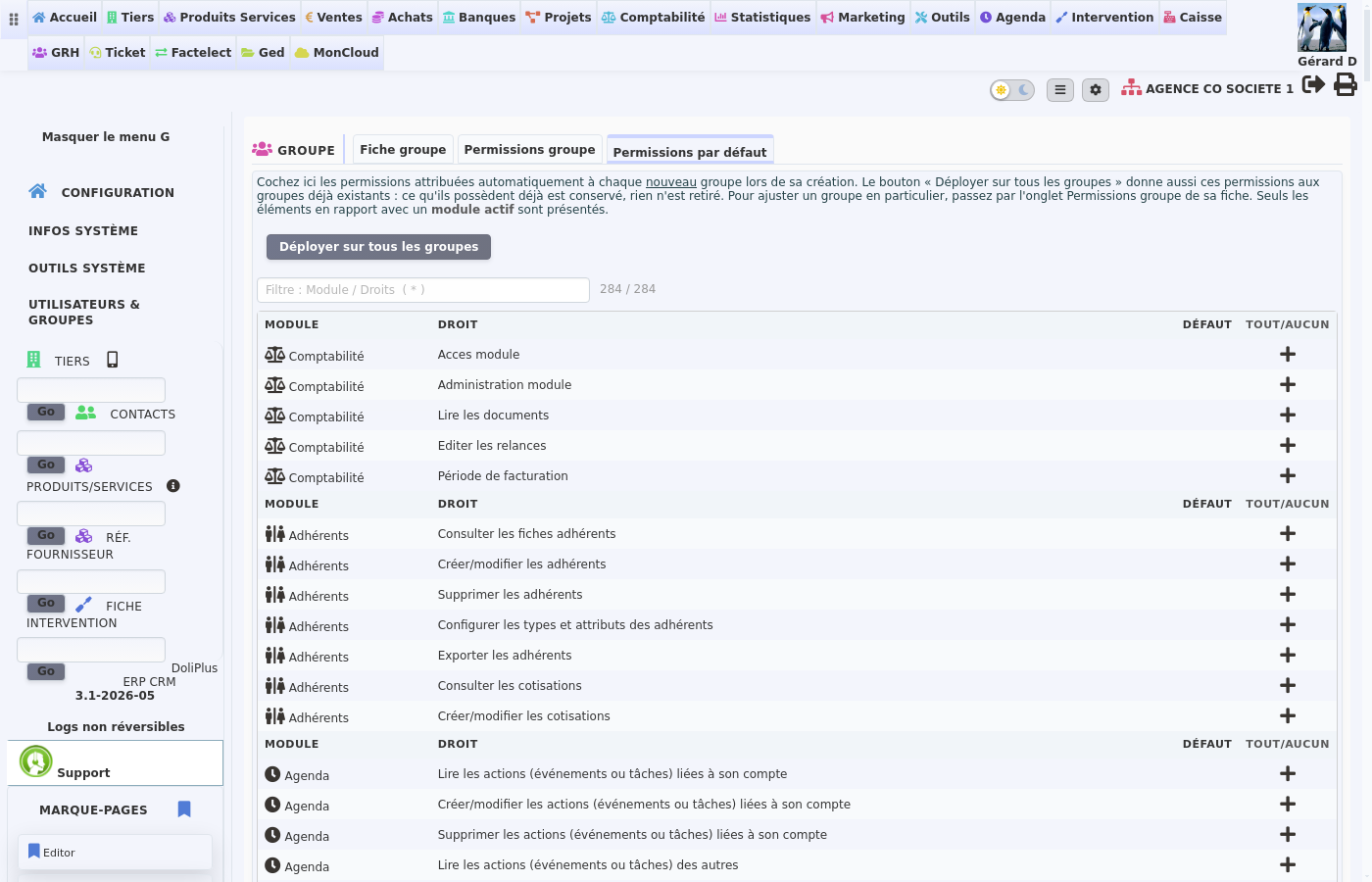
In summary, user access rights operate at three levels: individual, group, and default settings for future accounts. With bulk deployment, new rules apply to your entire team in one click.
Further reading
- User management in DoliPlus
- User record details
- Security-related information
- DoliPlus extranet portal
