 on 25 October 2026
 Contact management software: one customer file, shared by everyone
DoliPlus includes contact management software that keeps every business relationship in one file, shared by your whole team. At a glance:
- customers, prospects and suppliers side by side, with their contacts and addresses;
- each salesperson finds their own portfolio, and the manager sees the whole team’s;
- the full customer history on one card: meetings, purchases, notes, documents;
- one-click actions: check a VAT number, clone a card or merge two duplicates.
As a result, your quotes, invoices and emails always reach the right person, and nobody types the same company twice. DoliPlus is the enhanced cloud edition of Dolibarr, the open-source ERP & CRM used across Europe.
Companies and contacts: what the difference changes for you
A company (a “third party”) stands for a business or a private individual you work with. A contact, meanwhile, stands for a person or an address attached to that company: billing contact, accountant, delivery address…
Most other features build on top of your contact management software: quotes, orders, invoices, contracts. Therefore, a clean company file feeds your whole business.
Each company carries two key pieces of information:
- its sales status: prospect, customer, both prospect and customer, or neither;
- its supplier role: yes or no.
The same company can therefore be both a customer and a supplier. Besides, a company only has two states: open or closed.
Create a company in a few clicks
The Third parties → New menu offers several starting points. Each one pre-fills the card for you:
- “New prospect”: the company arrives as a Prospect, with Supplier set to “no”;
- “New customer”: it arrives directly as a Customer;
- “New supplier”: it arrives as “Neither customer nor prospect”, with Supplier set to “yes”;
- “New individual”: a private person, who arrives as a Prospect with a lighter form; DoliPlus creates their contact at the same time.
Of course, you can still change these choices later. Moreover, DoliPlus generates the customer or supplier code automatically, so every record keeps a unique reference.
Finally, the company card has a “Logo” field. Upload the company’s logo there, and it shows on the card straight away.
Create a company, step by step
- Third parties → New menu, then the starting point you want: prospect, customer, supplier or individual.
- At the top of the card, “Third party type”: “Company/Association” or “Private individual”.
- Enter the “Third party name” (required), then check “Lead / Customer” and “Supplier”. DoliPlus does not warn you about a name that already exists: search for the company first to avoid a duplicate.
- Fill in the address, phone, email (checked when you save), VAT number…
- Click “Create third party”: DoliPlus assigns its customer code, then opens the Customer tab for a customer, the Supplier tab for a supplier, or the card.
View and edit the card
The card opens with one click on the company name, from a list or the search. To correct it, click “Edit” at the bottom of the card: the “Company edit” page opens; make your changes, then click “Save” (or “Cancel”). The other buttons at the bottom of the card: “Delete” and “Create event”.
Add the contacts who really receive your documents
Contacts complete the picture. Create as many as you need: billing contact, treasurer, delivery address. Two routes exist:
- from the company card, with the “Create contact/address” button in the Contacts block (shown on the Card, Prospect, Customer and Supplier tabs): the contact then belongs to that company;
- from the Third parties → Contacts/Addresses → New contact/address menu: the contact may stay independent.
Afterwards, these contacts become the recipients of your emails, quotes and invoices. Already have a file elsewhere? Import your contacts in a single step.
Find and follow up your companies
The “Third-party area” of your contact management software opens on a dashboard: the breakdown of your companies (suspects, prospects, customers, suppliers), then the latest companies, customers, prospects, suppliers and contacts modified. With the customisable dashboard, more cards join them: new customers, top customers by turnover, overdue balances, prospects without a quote.
To find a company, the search in the top banner finds it by its name, its customer or supplier code, its email, its website or its SIREN/SIRET number (not by its phone number or its town).
The company list (Third parties → List of third parties menu), for its part, filters in one click:
- customers, prospects or suspects (leads not yet qualified);
- suppliers;
- the companies of a salesperson, with the “Managers/Salespeople” filter, or of a category, a department, a region, a country;
- and, under each column, a search box.
You also choose which columns to display (“Other columns”). On the prospect and suspect lists, “Show charts” sums up their potential and their prospecting status.
Above all, everyone sees what concerns them. A salesperson only sees their own portfolio, whereas the manager sees the whole team’s. Organise your sales force
The tabs of the company card: the whole customer history
A company card gathers, tab by tab, everything you know about that customer. So there is no need to dig through several tools before you call them.
Events, Referrers, Notifications, Notes
- Events: all the customer’s events, meetings and calls entered as well as the automatic history (quote validated, invoice sent…); “Create event” schedules the next one, and the “Status” column marks an event as done;
- Referrers: what the customer bought from you, or what the supplier delivered, over the last 12 months;
- Notifications: an automatic email goes to the right contact at each step (order validated, invoice…);
- Notes: a public note and a private note kept for your team;
- Tracking: who created or changed the card, and when.
Bank account, Parent company, Sales representatives
Just below the card header, a sub-banner opens three useful extras:
- Bank account: IBAN and BIC checked as you type, with a link to the SEPA direct debit mandate;
- Parent company: link a subsidiary to its group, then find every subsidiary from the parent company;
- Sales representatives: the salespeople assigned to the company, and their order.
Quick actions from the company card
Some tasks usually take several minutes. From the card, they take one click:
- check an EU VAT number: the “Check” link, next to the number, queries the European VAT validation service (VIES) and shows whether the number is valid, along with the registered name and address;
- with the GDPR module enabled, “Consent request” sends the company (a private individual with an email address) the message about their personal data, with their accept and refuse links; you review the message before it is sent;
- turn the company into a prospect;
- “Clone”: after confirmation, a copy of the card and its contacts (“Copy of …”) with new codes; sales representatives, categories, bank account and documents are not copied;
- “Merge” (requires the permission to delete third parties): choose the duplicate company; its quotes, orders, invoices, contacts, contracts, events, projects and documents move to the open card, then the duplicate is deleted: Merging third parties;
- sync the company with your PrestaShop store: PrestaShop connector.
Company documents, filed in the right place
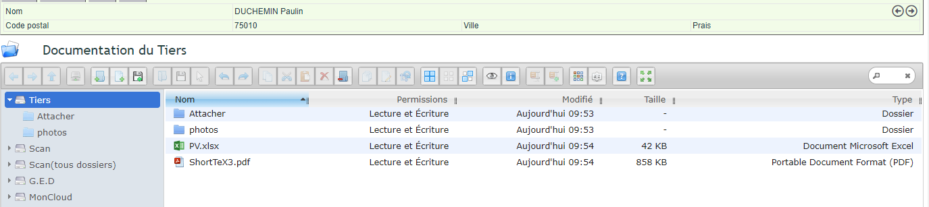
Every document dropped into the company’s file drive stays attached to that company only. In addition, the photos folder of the document space works as an image gallery for the company. Discover document management software
Attach a document to a customer card, step by step
- On the customer card, click the “ECM” tab (without the ECM module, the tab is called “Attached files”).
- On the left, “Third party” is this customer’s folder, created automatically. To file by topic, click “New folder”, type its name then press Enter, and double-click it to open it.
- Click “Upload files”, then “Select files”: the document lands in the open folder.
- Click the document: “Preview” displays it, “Open” opens it in the viewer, “Download” copies it to your computer. The search box, at the top right, finds it by a word from its name.
Print a document straight from a company card
You can also generate a document directly from a company card, using your own template. Templates use the .odt (word processing) or .ods (spreadsheet) format.
To upload them, open the Tools → Documents and Templates menu, then the “Document templates” folder. All about document templates

When the multilingual option is enabled, the card also carries a Default language field. Fill it in: from then on, that customer’s documents come out in their language, product names included if your catalogue is translated. Translate your product catalogue
Delete or close a company
First, deleting requires the permission to delete third parties. Then, deletion stays blocked as soon as the company has a quote, an order, an invoice, a contract, a supplier invoice or a supplier order.
In that case, simply set the company to “closed”. Its history stays intact, yet it no longer clutters your daily work.
Access rights that follow your teams
You set permissions by group first, then user by user when needed. In addition, thanks to the hierarchy defined in user management, the contact management software lets a manager reach the companies and documents of their own team. Set user access rights

The module setup, for its part, rules the company codes and the format of the accounting codes.
What good contact management software brings you
A messy customer file slows down the whole company. On the contrary, well-kept companies and contacts become a reliable reference that everyone shares.
In short, you gain on three fronts:
- one single database: customers, prospects and suppliers in the same place;
- targeted exchanges: the right contact receives the right document;
- a foundation for your whole business: quotes, orders and invoices all rely on it.
Above all, contact management software only pays off when your team trusts the data. Therefore, take the time to set your codes and rights once — you will keep the benefit for years.
Further reading
- Importing contacts into your CRM
- Automatic archiving of incoming and outgoing emails
- Standardise contact job titles with a drop-down list
- Multilingual product catalogue — so that documents for a foreign customer stay translated down to the product names
Related Entrées
