 on 7 July 2026
 Quotation software: create winning quotes with DoliPlus
Quotation software that writes the offer while you think
The quote is a decisive point in your sales process. That is why DoliPlus gives you everything needed to write a handsome quotation quickly and without effort:
- autocomplete entry — type a reference or a label, the line fills itself in;
- product photos pulled into the PDF straight from your product files;
- follow-up reminders scheduled from the quote itself;
- a win probability and a delivery date that feed your forecasts;
- a signature box on the PDF, and an on-screen signature pad.
As a result, you write an offer in under thirty seconds and you never lose track of it afterwards. DoliPlus is the enhanced cloud edition of Dolibarr, the open-source ERP & CRM used across Europe.
The quotation screen
To get started, see the following chapters:
- The quote, order and invoice screen;
- The subtotal function of quotes and invoices;
- The columns of quotation lines.
Add photos to your quote
Do you want your documents to stand out? DoliPlus helps you produce detailed, illustrated quotes.
In practice, you insert the photos filed in the “Photo” folder of your product document space. Then, in one click, you preview the PDF in your browser — on a tablet or a phone too.
Chase a quotation
Good quotation software does not stop at printing the offer — it reminds you to chase it. A couple of figures speak for themselves:
- only 25 % of small companies plan their sales actions across the year;
- 60 % of them chase their quotes only when they happen to have time.
With DoliPlus you schedule your follow-ups directly instead. You therefore gain in consistency as much as in efficiency.
Moreover, you can make that follow-up compulsory before the quote is validated. DoliPlus then creates a reminder action, assigned to the person of your choice. To switch this on, go to the PDF/Interface parameters, then enable PG30.
Finally, on the day, your quote stays directly reachable from the reminder action in the calendar. Simply remember to switch the “Quote follow-up” filter on.
Win probability and delivery date
Is your sales cycle medium or long? DoliPlus gives you visibility through built-in forecasting.
To that end, always fill in the win probability. That figure then weights your forecast turnover in the dashboards.
Likewise, state the estimated delivery date. DoliPlus therefore projects the turnover achievable in the coming months, and feeds it into your cash-flow planning.
Dashboards, statistics and targets
Quotation software is only worth its name if it tells you what your pipeline is worth. On the steering side, several tools are available. The 10 series of the Statistics menu gathers quotation data under several presentations. The 2000 series, for its part, shows a genuine activity dashboard.
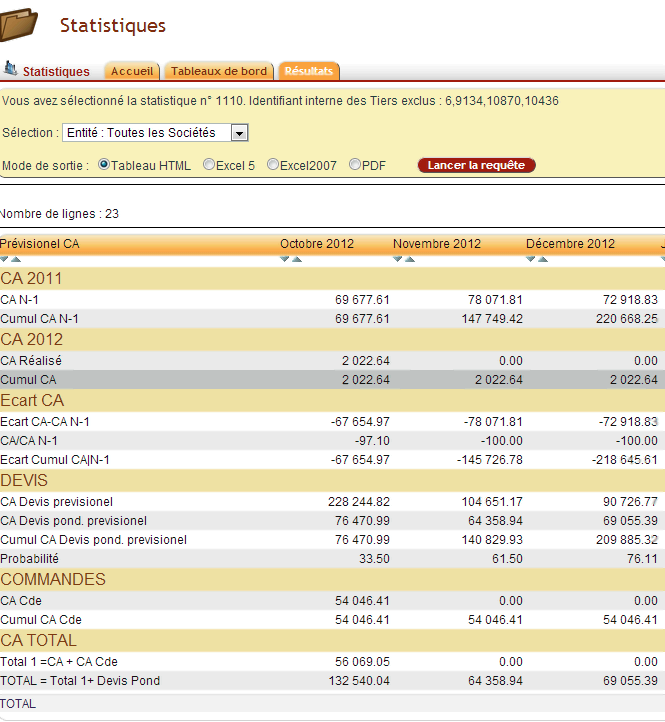
Finally, you enter your sales targets by year, by entity, by area or by salesperson.
Name the contacts on your quote
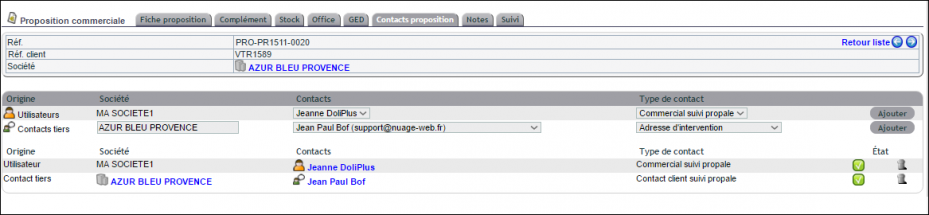
You include your contacts in the “Quote contacts” tab.
Note that for a “customer quote follow-up” contact, DoliPlus uses the contact address. For a “sales quote follow-up” contact, it carries the user mobile number into the PDF template.
Attach your terms and conditions
You attach your general terms of sale to your quotes. Indeed, they become your commercial contract the moment the customer signs. To go further, see the terms and conditions chapter.
Show your bank details on the PDF
First create your bank details in an account. Then configure the Invoice module to name the default account. You may finally pick an alternative account directly in the quote header.
A dedicated signature box
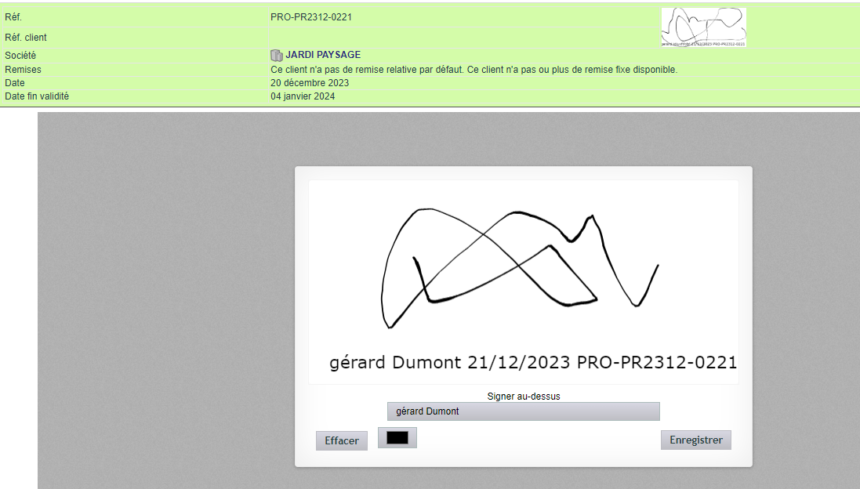
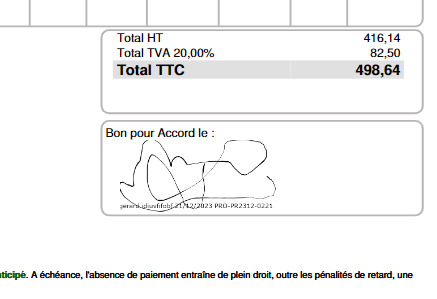
Go to Home → Setup → PDF/Interface parameters. Then switch on option 105: it adds a signature and approval area.
Moreover, that option adds a signature tab to the quote screen, with its pad. Generating the document again then includes the customer signature.
Quotation software that turns the quote into an order
In a single click, you turn your offers into sales orders. Besides, chaining rules define your automatic behaviour.
See your stock
A Stock tab shows at a glance the stock available for the products on the quote. Moreover, during autocomplete, the stock figure appears directly.
Attach documentation
From the quote console, you add technical documentation in PDF format in one click, taken from the product document space. DoliPlus then assembles all the documentation into a single PDF, ready to go with your quote.
Build your product catalogues
Do you manage catalogues with or without prices? The catalogue module produces automated catalogues from your product categories.
Quotes with long text (consultant style)
For heavily written quotes, the Office module answers the need perfectly. You write the text part, using saved chapters if you wish. Then you automatically assemble the priced part and the written part into a single PDF.
Create your customer prices
Do you work with a large account on negotiated prices? Record your customer prices, then call them straight into your quotes. To do so, see price management.
Business plan and cash-flow forecast
Your quotes feed your cash-flow forecast automatically. You therefore anticipate your working capital requirement.
Convert your website contacts
You convert contacts coming from your website into prospects automatically. To do so, look at the LinkWeb module.
Working by business opportunity
Do you work through successive or alternative quotes? The Business opportunities module is made for you.
Adjust the PDF layout
To fine-tune line and page breaks, see the quote, order and invoice screen.
Send the quote by email
As soon as the quote is validated, you send it through the internal mail screen, without opening the webmail:
- the contacts are offered, with a read-receipt option;
- you attach sales documentation on the way;
- the quote is filed in your sent items;
- an “email sent” action records the sending automatically.
Where the quote came from
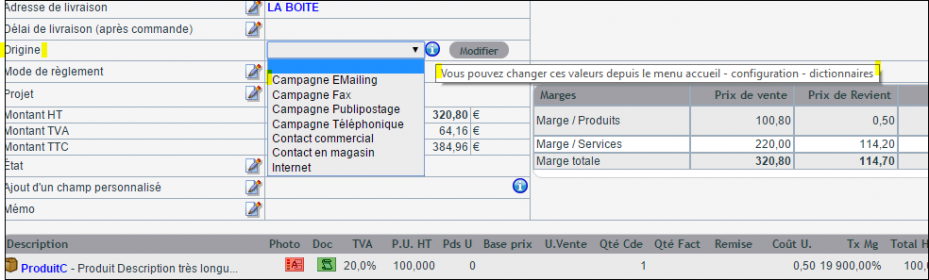
On creation, you state the origin of the quotation. The general dictionary lets you adapt the list offered. Finally, statistical query number 46 makes use of that data.
File quotations in bulk
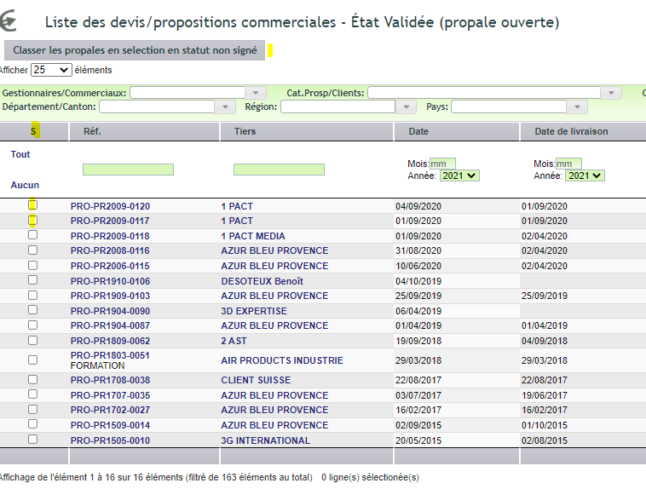
This action is reserved for administrators:
- open the list of quotes in the “Validated” state;
- show the selection column if needed;
- finally, confirm the selection.
Import quotation lines from a file
Do you fill your quote from an outside source? This function exists for that.
Setting it up is simple:
- switch on option PG60 in the PDF/Interface parameters;
- prepare a CSV file with the semicolon as separator;
- drop it into the “import” folder of the quote document space;
- name the headers in capitals; the other columns are ignored.
Column headers
- INDICE: the line index (useful for construction quotes);
- REF: the product reference in the DoliPlus database;
- LIBELLE: the label of an unlisted product;
- DESC: the additional description;
- QTE: the quantity;
- PU: the unit price, without a symbol;
- TVA: the VAT rate (20 % by default);
- REMISE: the discount in %, without the symbol;
- UNITÉ: the unit, matching the dictionary.
How the import works
During the import, DoliPlus first tries to recognise the reference through the REF column.
On success, the LIBELLE column is ignored (the information comes from the product), while DESC replaces the original description. On failure, the line becomes a free-text product, and the error is noted in the internal note of the quote.
If the REF column is empty, the line is treated as a free-text product: LIBELLE is used, and DESC is ignored.
Subtotals and chapters
You also structure your quotes with tags in the REF column:
- COM: creates a chapter (LIBELLE used), without grouping the following lines;
- TOTAL: opens a subtotal that includes the following lines;
- STOP: ends the current subtotal.
Outside the CSV import, you also attach a line to a subtotal directly on screen: when creating the line, when editing it, or by drag and drop. The step-by-step detail sits in the chapter the subtotal function of quotes, orders and invoices.
Validation checks
DoliPlus offers standard validation checks. To learn more, see the dedicated chapter.
Lay out your PDF documents
Switch the layout options on in the PDF/Interface parameters. In the New DoliPlus series, for example, borders and colours are configurable.
To go further, see the document generation templates and PDF customisation. You can also display your service logos in the page footer.
Further options to set
Finally, many options customise the display on screen and on the PDF: columns, delivery addresses, supplier references, terms and conditions, logos and more.
For the full list, see the PDF/Interface parameters chapter.
Related Entrées
